
How to Fix SSH No Matching Host Key Type Found
Resolve SSH host key algorithm negotiation failures by identifying the server key, updating legacy hosts, and using narrowly scoped compatibility settings.
Unable to negotiate ... no matching host key type found means the client and server could not agree on an algorithm for proving the server’s identity. This commonly appears when a modern OpenSSH client connects to an old server or appliance that offers only deprecated ssh-rsa or ssh-dss host keys.
Capture the server’s offer
ssh -vvv user@example.com
The final error usually includes the algorithms offered by the server:
Their offer: ssh-rsa,ssh-dss
Record the exact offer, hostname, port, address, and SSH banner. Do not confuse this with no matching key exchange method found: key exchange establishes session keys, while the host key authenticates the server.
Inspect the effective client policy
ssh -G example.com | grep -E '^(hostname|port|hostkeyalgorithms|proxyjump|proxycommand) '
ssh -Q HostKeyAlgorithms
The query lists algorithms the client understands; the effective configuration shows what it will use for this destination after user, system, and included configuration files are applied.
System-wide cryptographic policy may disable an algorithm even when the SSH binary supports it. Inspect the operating system policy before assuming ~/.ssh/config is the only source.
Confirm the intended server
DNS changes, port forwarding, bastions, and load balancers can lead to an older SSH endpoint than expected:
getent ahosts example.com
nc -v example.com 22
Compare every returned address if behavior is inconsistent. The banner should begin with SSH-2.0-, but it does not by itself authenticate the endpoint.
Inspect available server host keys
Using console access or another approved administrative path:
sudo sshd -T | grep hostkey
sudo find /etc/ssh -maxdepth 1 -type f -name 'ssh_host_*_key.pub' -print
sudo ssh-keygen -lf /etc/ssh/ssh_host_ed25519_key.pub
Prefer adding a modern Ed25519 or ECDSA host key, or a properly supported RSA key with SHA-2 signatures, then upgrading the server’s SSH implementation. Validate configuration before reloading:
sudo sshd -t
Keep an existing administrative session open while changing server SSH configuration so a mistake does not lock out recovery.
Use a temporary client exception carefully
If a trusted legacy device must be accessed briefly for an upgrade, enable only the algorithm named in the error for that one host:
ssh -o HostKeyAlgorithms=+ssh-rsa user@example.com
If public-key user authentication later fails, PubkeyAcceptedAlgorithms is a separate setting. Do not enable it unless the next error specifically requires it.
A narrowly scoped configuration looks like:
Host legacy-example
    HostName example.com
    HostKeyAlgorithms +ssh-rsa
Never place legacy compatibility beneath Host *. Verify the host-key fingerprint through a trusted channel before accepting it, document the exception, and set a removal date.
Diagnose it with Rumus
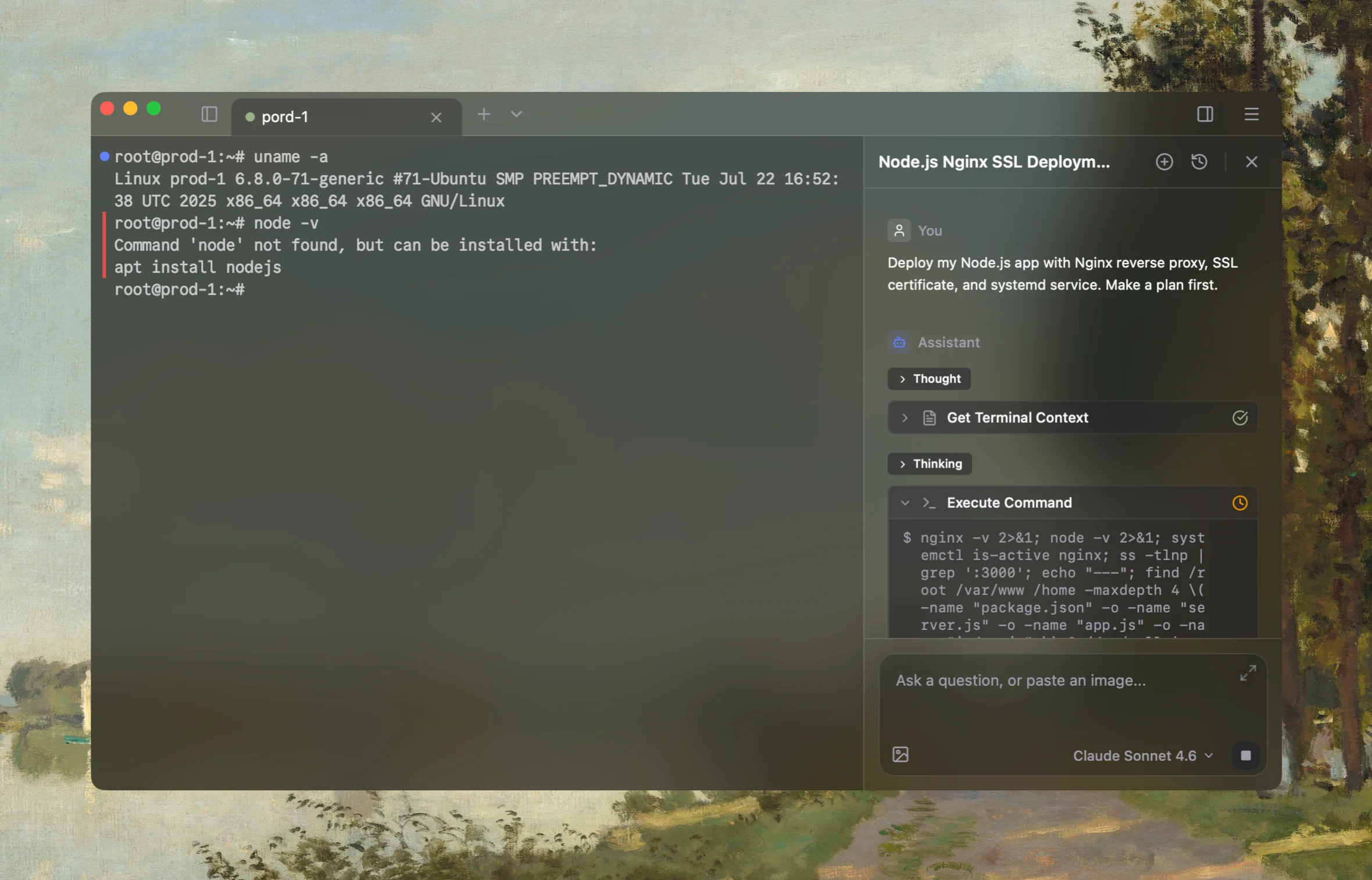
Rumus is an AI-native terminal that connects to your real SSH hosts and understands the active connection context. It can inspect SSH configuration, identities, network paths, and server logs instead of guessing from an isolated chat.
What Rumus can inspect
- SSH config, keys, and effective connection settings
- Jump hosts, proxies, ports, and network reachability
- Server authentication logs and file permissions
Diagnose this SSH no matching host key type error. Capture the algorithms offered
by the server; inspect the effective client host-key policy, system crypto policy,
destination addresses, port, banner, proxy and jump-host path; and, when server
access exists, inventory configured host keys and the SSH version. Prefer a server
upgrade. Do not enable legacy algorithms, generate keys, or reload sshd without
approval, and verify fingerprints through a trusted channel.
Confirm the fix
ssh -vvv user@example.com
Confirm a modern host-key algorithm is selected and its fingerprint matches the value verified out of band. Remove any temporary compatibility exception after the server is upgraded and test again from a clean client configuration.
Open the server in Rumus and let the AI agent inspect context, propose a plan, and ask before it runs changes.