
How to Fix SSH kex_exchange_identification Errors
Diagnose SSH kex_exchange_identification and connection closed errors by checking access controls, connection limits, bans, proxies, and sshd logs.
The error kex_exchange_identification: Connection closed by remote host means the TCP connection reached something at the destination, but it closed before SSH key exchange completed. The cause is often an SSH connection limit, an automated ban, a TCP wrapper or firewall rule, a proxy, or a service on the port that is not actually SSH.
Capture the exact failure
Use verbose output and confirm the effective destination:
ssh -vvv user@example.com
ssh -G example.com | grep -E '^(hostname|port|user|proxyjump|proxycommand) '
Distinguish these related messages:
Connection closed: the peer accepted and then closed the TCP connection.Connection reset: the peer or an intermediate device forcibly reset it.Connection timed out: the TCP connection was not completed.banner exchange: the connection closed or returned invalid data before key exchange.
Verify the service on the destination port
nc -v example.com 22
A normal SSH endpoint usually returns a banner beginning with SSH-2.0-. An HTTP response, TLS data, or no banner suggests the hostname, port forwarding, proxy, or load balancer points to the wrong service.
If DNS has multiple addresses, test them independently:
getent ahosts example.com
ssh -4 user@example.com
ssh -6 user@example.com
Check server logs
Use console access, a bastion, or another approved session:
sudo journalctl -u ssh -u sshd --since "30 minutes ago"
sudo journalctl -k --since "30 minutes ago"
Correlate entries with the client’s source address and timestamp. Look for connection throttling, denied addresses, process failures, resource exhaustion, or firewall log entries.
Inspect SSH connection limits
Check the effective daemon configuration:
sudo sshd -T | grep -E 'maxstartups|maxsessions|persourcemaxstartups|logingracetime'
ss -tn state established '( sport = :22 )'
MaxStartups limits concurrent unauthenticated connections. A burst of scanners, automation, or many parallel deployment jobs can cause sshd to drop new connections before authentication. MaxSessions instead controls multiplexed sessions after authentication and is not the usual cause of a pre-key-exchange failure.
Do not raise limits until you know whether the connections are legitimate and the host has enough capacity.
Check bans and access controls
Depending on the system, inspect active firewall and ban tooling:
sudo fail2ban-client status sshd
sudo nft list ruleset
sudo ufw status verbose
sudo firewall-cmd --list-all
Also review cloud firewalls, security groups, TCP wrappers on older systems, and source-IP allowlists on bastions or load balancers. If only one network fails, confirm whether NAT or VPN changes altered the client’s public source address.
Avoid disabling Fail2ban or opening SSH globally. Remove a ban only after confirming the source is trusted and the authentication failures have stopped.
Check resource pressure
An overloaded host can accept TCP and fail before completing SSH setup:
uptime
free -h
df -h
systemctl status sshd
Inspect process limits and OOM events if logs indicate fork or allocation failures. Fix the resource cause rather than repeatedly restarting sshd.
Diagnose it with Rumus
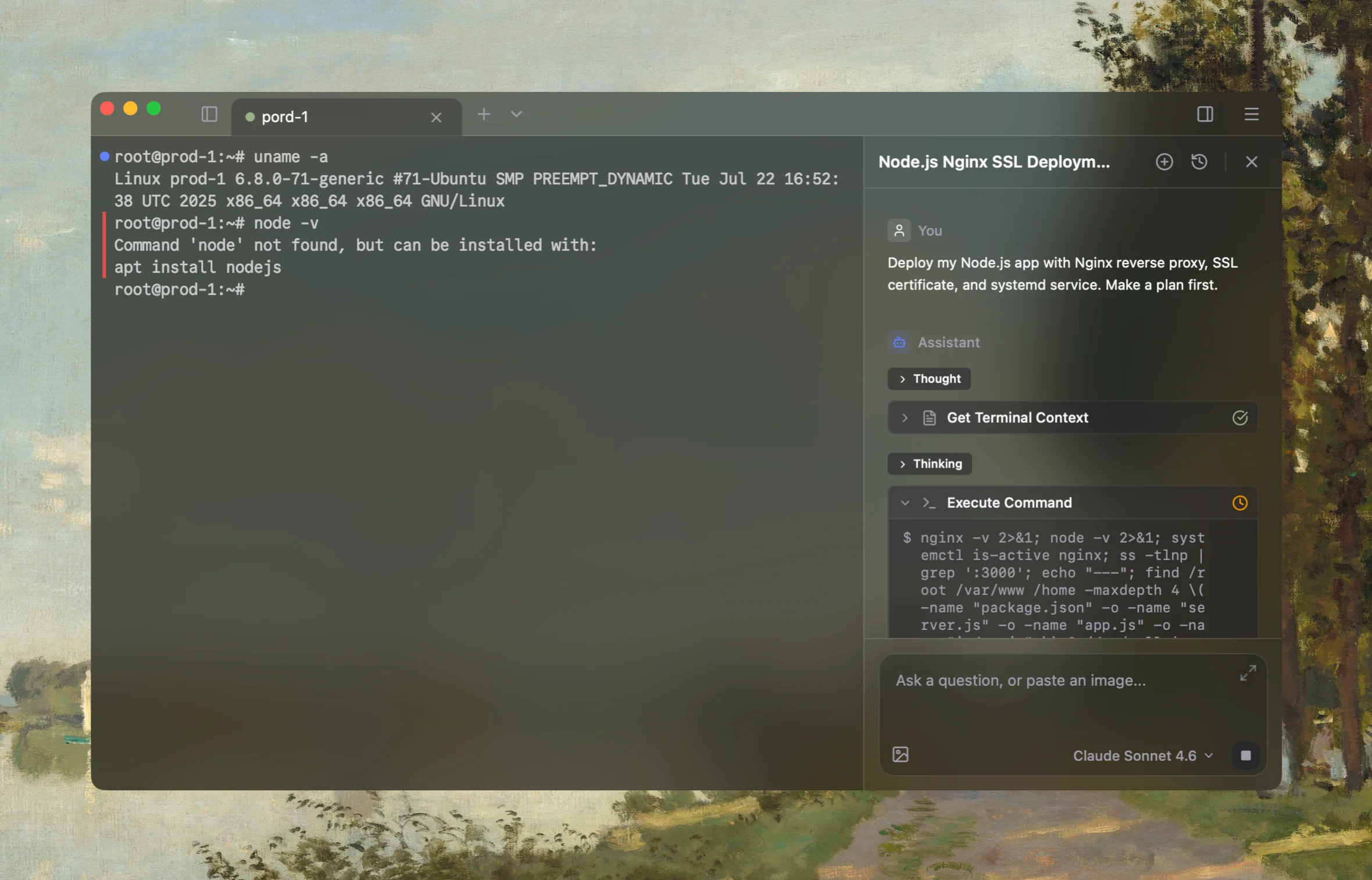
Rumus is an AI-native terminal that connects to your real SSH hosts and understands the active connection context. It can inspect SSH configuration, identities, network paths, and server logs instead of guessing from an isolated chat.
What Rumus can inspect
- SSH config, keys, and effective connection settings
- Jump hosts, proxies, ports, and network reachability
- Server authentication logs and file permissions
Diagnose the SSH kex_exchange_identification error for example.com. Confirm the
effective hostname, port, proxy and address family; inspect the remote banner,
sshd logs and effective connection limits, current connections, bans, firewall
events, and host resource pressure. Start read-only and do not restart sshd,
remove bans, raise limits, or modify firewall rules without approval.
Confirm the fix
Test from the original client and one other trusted network:
nc -v example.com 22
ssh -vvv user@example.com
Confirm the server consistently returns an SSH banner, reaches authentication, and records no new throttling or resource errors. If automation caused the burst, reduce its connection concurrency before declaring the incident resolved.
Open the server in Rumus and let the AI agent inspect context, propose a plan, and ask before it runs changes.