
How to Fix SSH Broken Pipe and Random Disconnects
Diagnose SSH broken pipe errors and sessions that disconnect by checking idle timeouts, keepalives, network stability, bastions, and server logs.
An SSH session that ends with client_loop: send disconnect: Broken pipe has lost its underlying connection. Common causes include idle timeouts on firewalls or load balancers, unstable Wi-Fi or VPN links, a bastion closing the session, server resource pressure, and keepalive settings that do not match the network path.
Identify when the disconnect happens
First determine whether the session drops only while idle, during long-running commands, or at seemingly random times:
ssh -vvv user@example.com
Record the approximate disconnect interval. A repeatable interval such as 60, 300, or 900 seconds often points to a timeout on a firewall, NAT gateway, VPN, proxy, or bastion rather than an SSH authentication problem.
Test client keepalives temporarily
Send an encrypted SSH-level keepalive every 30 seconds and disconnect after three unanswered probes:
ssh -o ServerAliveInterval=30 -o ServerAliveCountMax=3 user@example.com
If this prevents idle disconnects, add a narrowly scoped entry to ~/.ssh/config:
Host example.com
    ServerAliveInterval 30
    ServerAliveCountMax 3
Avoid applying aggressive keepalives to every host until you know they are needed. TCPKeepAlive is different from ServerAliveInterval and may not detect all stalled application paths.
Check jump hosts and proxies
View the effective SSH configuration:
ssh -G example.com | grep -E '^(hostname|port|proxyjump|proxycommand|serveralive) '
When ProxyJump or ProxyCommand is present, test the bastion and destination separately. A timeout on either leg can terminate the final session.
Compare the network path
Try the connection from another trusted network, or temporarily without the VPN if policy permits. During a long test, monitor reachability in a separate terminal:
ping example.com
Ping loss alone does not prove SSH loss because ICMP may be deprioritized or blocked. Correlate it with the SSH timestamp and changes to Wi-Fi, VPN, routing, or public IP.
Inspect server logs and pressure
Using a fresh connection, console, or another approved access path, inspect recent SSH events:
sudo journalctl -u ssh -u sshd --since "30 minutes ago"
sudo journalctl -k --since "30 minutes ago"
uptime
free -h
Look for explicit timeout messages, OOM kills, reboots, interface changes, and resource saturation. Also check ClientAliveInterval and ClientAliveCountMax in the effective server configuration:
sudo sshd -T | grep -E 'clientalive(interval|countmax)'
Do not restart sshd or change its configuration until the proposed configuration passes sudo sshd -t and a second administrative session remains open.
Protect long-running work
Keepalives improve detection and can prevent idle network devices from expiring a connection, but they cannot make an unstable network reliable. Run important interactive jobs inside tmux or screen so they survive a client disconnect:
tmux new -s maintenance
Diagnose it with Rumus
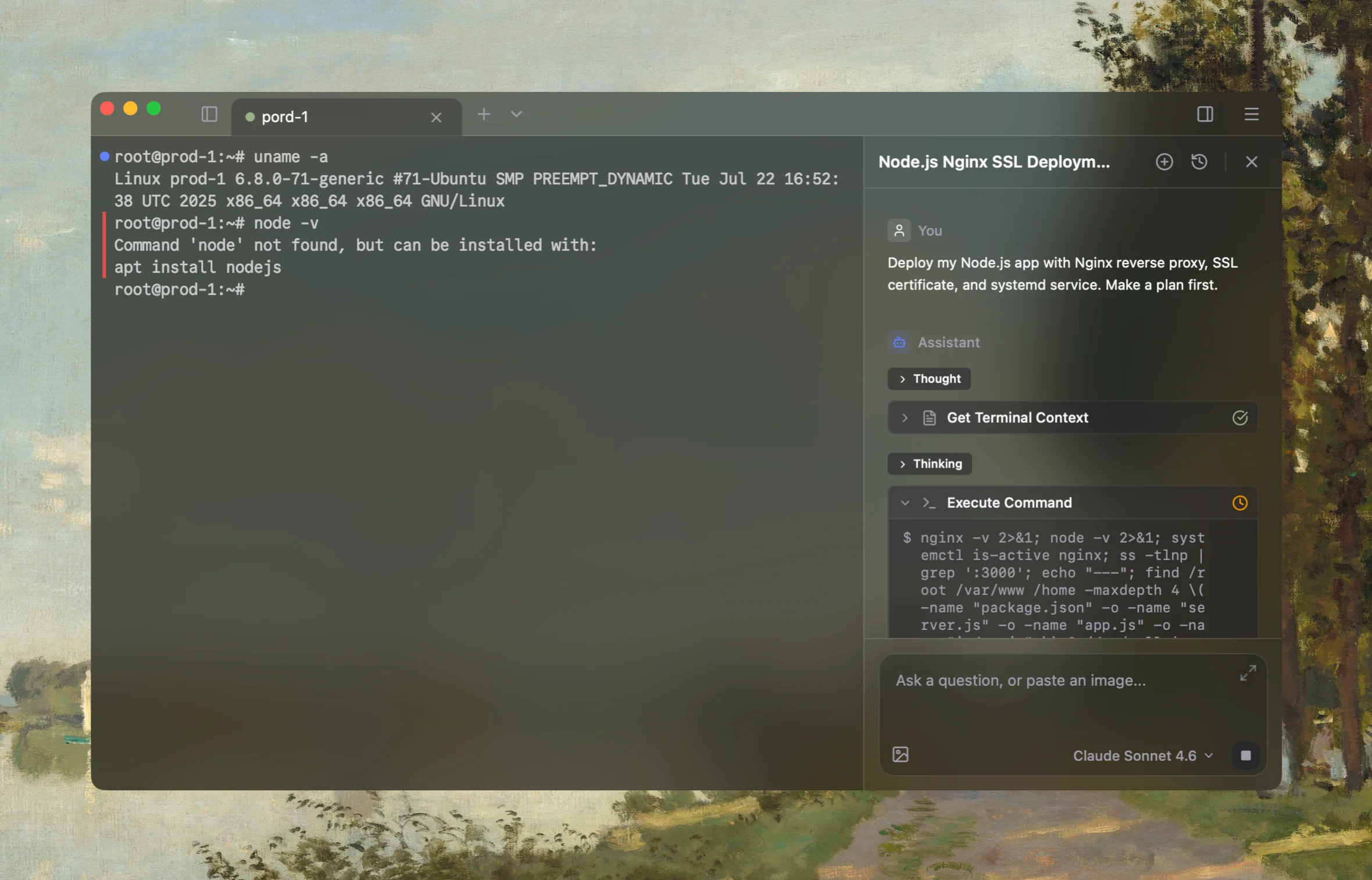
Rumus is an AI-native terminal that connects to your real SSH hosts and understands the active connection context. It can inspect SSH configuration, identities, network paths, and server logs instead of guessing from an isolated chat.
What Rumus can inspect
- SSH config, keys, and effective connection settings
- Jump hosts, proxies, ports, and network reachability
- Server authentication logs and file permissions
Diagnose why SSH sessions to example.com end with Broken pipe. Determine whether
disconnects correlate with idle time, long-running commands, VPN or Wi-Fi changes;
inspect effective client settings, jump hosts, network stability, server SSH logs,
kernel events, and resource pressure. Start read-only and do not modify or restart
sshd, firewall, or network services without approval.
Confirm the fix
Keep a test session idle for longer than the previous failure interval, then run a controlled long-lived command. Confirm that the connection stays responsive and that server logs contain no new disconnect, OOM, or network errors. Reconnect once more before relying on the change for production maintenance.
Open the server in Rumus and let the AI agent inspect context, propose a plan, and ask before it runs changes.