
How to Fix Too Many Open Files on Linux
Diagnose Linux too many open files errors by finding the affected process, checking file descriptor usage, leaks, and effective systemd limits.
Too many open files means a process or the system cannot allocate another file descriptor. File descriptors represent regular files as well as sockets, pipes, event handles, and devices. Raising a limit may restore capacity temporarily, but first determine whether usage is expected or caused by a descriptor leak.
Identify the affected process and limit
Find the service error in its logs, then inspect the running process:
sudo journalctl -u SERVICE --since "30 minutes ago"
pid=$(systemctl show -p MainPID --value SERVICE)
cat /proc/$pid/limits | grep -i 'open files'
ls /proc/$pid/fd | wc -l
For a non-systemd application, obtain the PID with an appropriate process manager or pgrep. The soft limit is enforced for the process; the hard limit caps how high the soft limit can be raised.
Shell output from ulimit -n only describes that shell and its future children. It does not prove the effective limit of an already running service.
Determine what descriptors are open
Summarize the process’s descriptors:
sudo lsof -nP -p "$pid"
sudo lsof -nP -p "$pid" | awk 'NR > 1 {print $5}' | sort | uniq -c | sort -nr
Look for unusually large groups of:
- TCP or UDP sockets
- deleted files that remain open
- repeated log, configuration, or data files
- pipes and anonymous inodes
- connections stuck in one remote state
For socket-heavy services:
sudo ss -tanp
Use timestamps and application metrics to decide whether descriptor growth follows legitimate traffic or continues without returning to baseline.
Check whether usage keeps growing
Sample the descriptor count over time:
watch -n 5 "ls /proc/$pid/fd 2>/dev/null | wc -l"
Steady growth under stable load strongly suggests a leak or missing cleanup path. A high but stable count may instead reflect real concurrency and require capacity planning.
Do not use lsof in an extremely tight loop on a busy production system; enumerating descriptors has overhead.
Inspect service and user limits
For a systemd service:
systemctl show SERVICE -p LimitNOFILE -p MainPID
systemctl cat SERVICE
systemctl show --property DefaultLimitNOFILE
For login sessions, limits may come from PAM and /etc/security/limits.conf or files under /etc/security/limits.d/. Containers can inherit or override limits through their runtime configuration.
Also check the system-wide file handle state:
cat /proc/sys/fs/file-nr
sysctl fs.file-max
If only one process fails while the system has capacity, focus on its per-process limit. If system-wide allocation approaches fs.file-max, identify all major consumers before changing global settings.
Fix the cause before increasing capacity
Common permanent fixes include:
- closing files and responses correctly in application code
- reusing connection pools instead of opening unbounded sockets
- applying concurrency and queue limits
- rotating logs without leaving deleted files open
- setting a justified
LimitNOFILEfor a high-concurrency service
For systemd, use a service override rather than editing the packaged unit:
[Service]
LimitNOFILE=65536
Run systemctl daemon-reload and restart the service only during an approved window. A new limit applies to newly started processes; it does not retroactively change the current service.
Diagnose it with Rumus
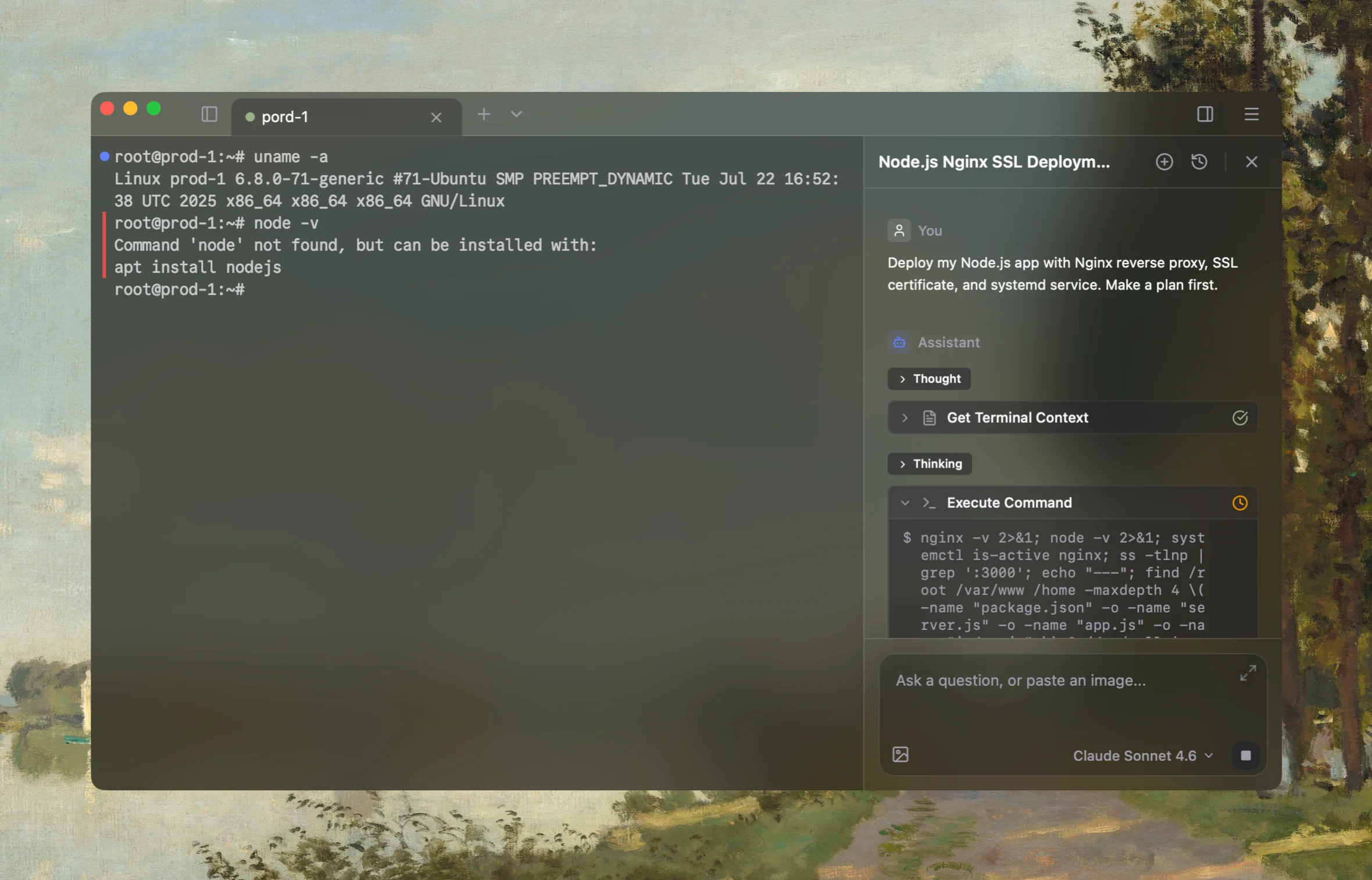
Rumus is an AI-native terminal that can investigate the actual Linux host. Its agent reads relevant files, services, logs, processes, and system state, then proposes a reviewable plan before making changes.
What Rumus can inspect
- Services, processes, sockets, and system resources
- Logs, configuration files, permissions, and ownership
- Read-only evidence before cleanup or restarts
Diagnose the Too many open files error for SERVICE. Identify the affected PID,
its current descriptor count and effective soft and hard limits; categorize open
files and sockets, check whether usage grows over time, inspect systemd and global
file-handle limits, logs, and workload concurrency. Start read-only and do not
restart the service or raise limits without approval.
Confirm the fix
After deploying the approved code, configuration, or capacity change:
systemctl show SERVICE -p MainPID -p LimitNOFILE
cat /proc/$(systemctl show -p MainPID --value SERVICE)/limits | grep -i 'open files'
Monitor descriptor count through normal and peak traffic. Confirm it stabilizes below the effective limit, application errors stop, and system-wide file handles retain sufficient headroom.
Open the server in Rumus and let the AI agent inspect context, propose a plan, and ask before it runs changes.