
How to Debug Segmentation Fault (Core Dumped) on Linux
Investigate Linux segmentation faults using kernel logs, systemd-coredump, executable metadata, shared libraries, resource limits, and safe backtraces.
Segmentation fault (core dumped) means a process accessed memory in a way the kernel would not permit. The root cause can be an application bug, an incompatible library, corrupted input, memory corruption, unsupported CPU instructions, or occasionally failing hardware. Preserve the executable, logs, and core metadata before reinstalling or restarting repeatedly.
Record the failure context
Capture the exact command, arguments, working directory, user, input, and time. Then inspect kernel and service logs:
sudo journalctl -k --since "30 minutes ago"
sudo journalctl -u SERVICE --since "30 minutes ago"
dmesg -T | tail -n 100
Kernel messages often name the process, faulting instruction address, executable, and library. A segfault in the same library across different inputs suggests a different path from failures at random addresses.
Inspect saved core metadata
On systemd-based systems:
coredumpctl list --since "1 hour ago"
coredumpctl info PID_OR_EXE
The metadata shows the executable, signal, command line, user, architecture, and whether a core file was stored. Core dumps can contain passwords, tokens, customer data, and encryption material. Restrict access and do not upload them to third-party services without authorization.
Check whether core capture is enabled
ulimit -c
cat /proc/sys/kernel/core_pattern
systemctl show SERVICE -p LimitCORE
A zero shell limit does not prove a systemd service has the same limit. Conversely, the message may say core dumped even when policy discards or externally processes the dump.
Do not enable unlimited production core dumps without storage limits and a retention policy.
Verify the executable and libraries
file /path/to/program
ldd /path/to/program
readelf -n /path/to/program | grep -A2 'Build ID'
Confirm the binary matches the host architecture and that expected libraries resolve. Compare package ownership and integrity using the distribution’s package manager. A recently replaced library, partial upgrade, plugin, or manually copied binary is a strong lead.
Avoid running ldd on an untrusted executable; use safer ELF inspection tools when the file origin is unknown.
Generate a safe backtrace
If debugging tools and symbols are approved:
coredumpctl debug PID_OR_EXE
Inside GDB:
thread apply all bt full
info sharedlibrary
Install debug symbols matching the exact executable and library builds. Function names without matching symbols can be misleading, and optimized builds may omit variables or inline frames.
Redact sensitive arguments and memory values before sharing a backtrace.
Compare reproducibility and recent changes
Test the smallest safe input that reproduces the issue in a non-production environment. Compare:
- application version and build ID
- libraries and plugins
- configuration and environment variables
- CPU architecture and features
- recent OS or package updates
- input data and concurrency
A segfault that follows one input suggests parser or data handling logic. Random failures across unrelated processes can justify checking RAM, storage, CPU, temperature, and kernel hardware-error logs.
Diagnose it with Rumus
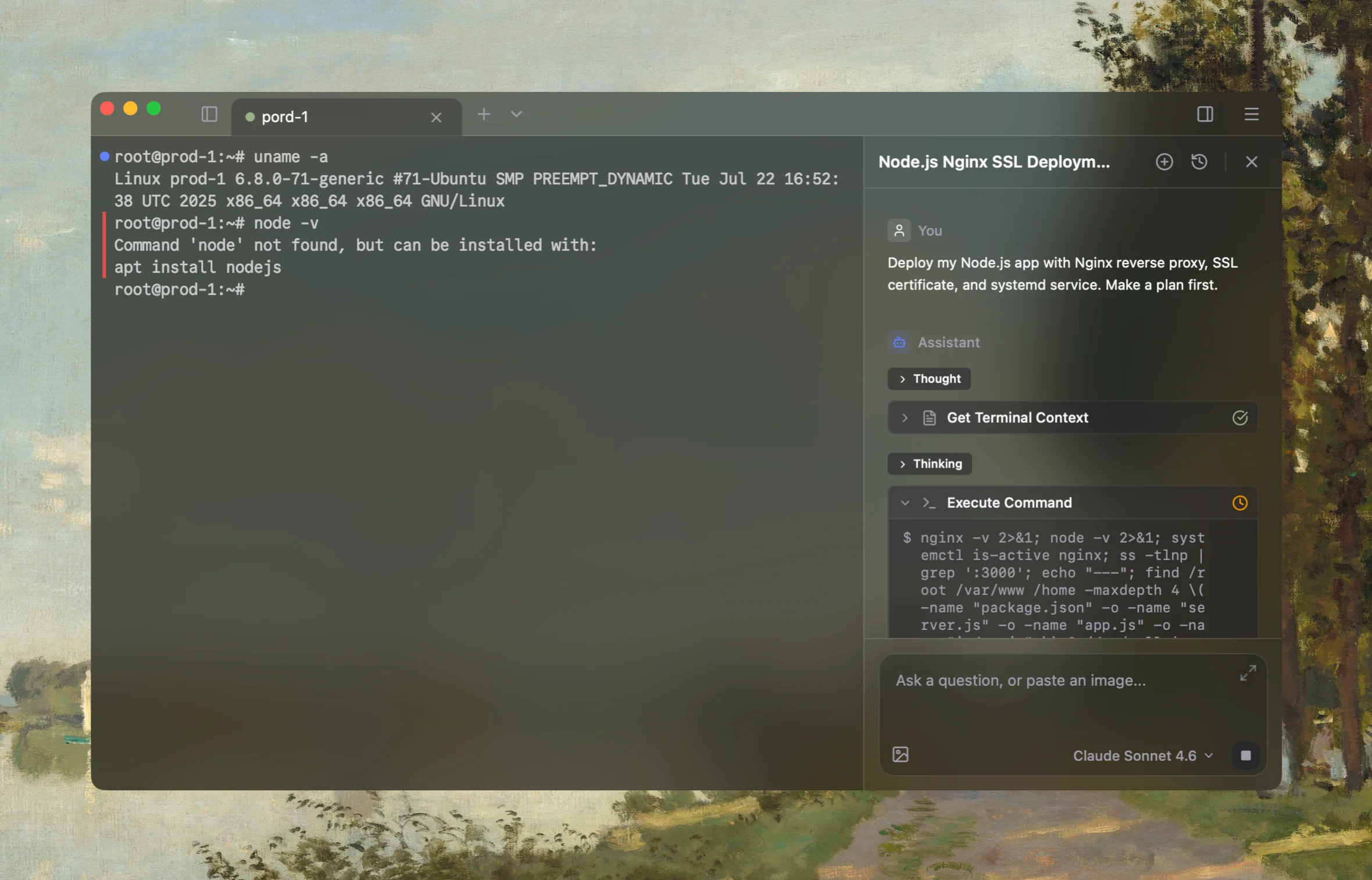
Rumus is an AI-native terminal that can investigate the actual Linux host. Its agent reads relevant files, services, logs, processes, and system state, then proposes a reviewable plan before making changes.
What Rumus can inspect
- Services, processes, sockets, and system resources
- Logs, configuration files, permissions, and ownership
- Read-only evidence before cleanup or restarts
Diagnose this Linux segmentation fault. Preserve the failure time, command and
build; inspect kernel and service logs, coredump metadata and limits, executable
architecture and build ID, resolved libraries, package changes, resource pressure,
and hardware-error signals. If authorized, produce a symbol-aware backtrace while
redacting secrets. Do not upload cores, restart production repeatedly, install
debug packages, or change core-dump policy without approval.
Confirm the fix
Deploy the approved application, library, configuration, or hardware fix to a controlled environment first. Re-run the exact reproducer and representative workload, then verify:
coredumpctl list --since "30 minutes ago"
sudo journalctl -k --since "30 minutes ago"
Confirm no new segfaults appear and monitoring covers the previously failing path under realistic load.
Open the server in Rumus and let the AI agent inspect context, propose a plan, and ask before it runs changes.