
How to Fix a Read-Only File System on Linux
Diagnose Linux read-only file system errors safely by identifying the mount, checking kernel logs, disk health, filesystem errors, and recovery options.
The error Read-only file system means the target is on a mount that currently rejects writes. It may be intentionally mounted read-only, but Linux can also remount a filesystem read-only after detecting I/O or metadata errors to reduce further damage. Do not immediately force a read-write remount before identifying the cause.
Identify the affected mount
Resolve the path to its filesystem and inspect its mount options:
findmnt -T /path/that/fails -o TARGET,SOURCE,FSTYPE,OPTIONS
df -hT /path/that/fails
Check whether the options contain ro. Also determine whether the path belongs to a container bind mount, an immutable image, a network filesystem, or a local block device; each requires a different fix.
Check kernel messages first
Look for errors around the time writes started failing:
sudo journalctl -k --since "1 hour ago"
sudo dmesg -T | tail -n 200
Search for messages containing I/O error, EXT4-fs error, XFS, BTRFS, Buffer I/O, reset, or remounting filesystem read-only. Preserve these messages before rebooting because they often reveal whether the problem is the filesystem, storage device, controller, or network-backed volume.
Rule out an intentional read-only mount
Review the live mount and persistent configuration:
findmnt --verify
grep -vE '^\s*(#|$)' /etc/fstab
Cloud images, recovery environments, containers, snapshots, and Kubernetes volumes may intentionally expose a read-only filesystem. In those cases, changing the guest mount flag is not the correct solution; update the volume or workload configuration at its source.
Inspect the underlying device
Map the filesystem to its block device:
lsblk -o NAME,FSTYPE,SIZE,RO,MOUNTPOINTS,MODEL
For a physical disk that supports SMART, inspect health without starting a destructive test:
sudo smartctl -a /dev/DEVICE
Repeated I/O errors, increasing reallocated or pending sectors, or a device reporting read-only state should be treated as a storage incident. Prioritize backups and replacement over repeated remount attempts.
Choose a recovery path by filesystem
Filesystem repair normally requires the affected filesystem to be unmounted. For the root filesystem, boot into rescue mode or attach the disk to a recovery host. Then use the tool appropriate to its filesystem:
sudo fsck -n /dev/DEVICE
sudo xfs_repair -n /dev/DEVICE
The -n examples perform a read-only assessment where supported. Review the output and secure a backup before running a repair that writes changes. Do not run generic fsck against a mounted filesystem, and do not use an ext-family repair command on XFS or Btrfs.
If logs show no device or filesystem error and the mount was intentionally set to ro, a remount may be appropriate after confirming the expected configuration:
sudo mount -o remount,rw MOUNTPOINT
Treat this as a fix only when the underlying cause is understood. A filesystem that the kernel protected due to corruption may reject the request or fail again.
Diagnose it with Rumus
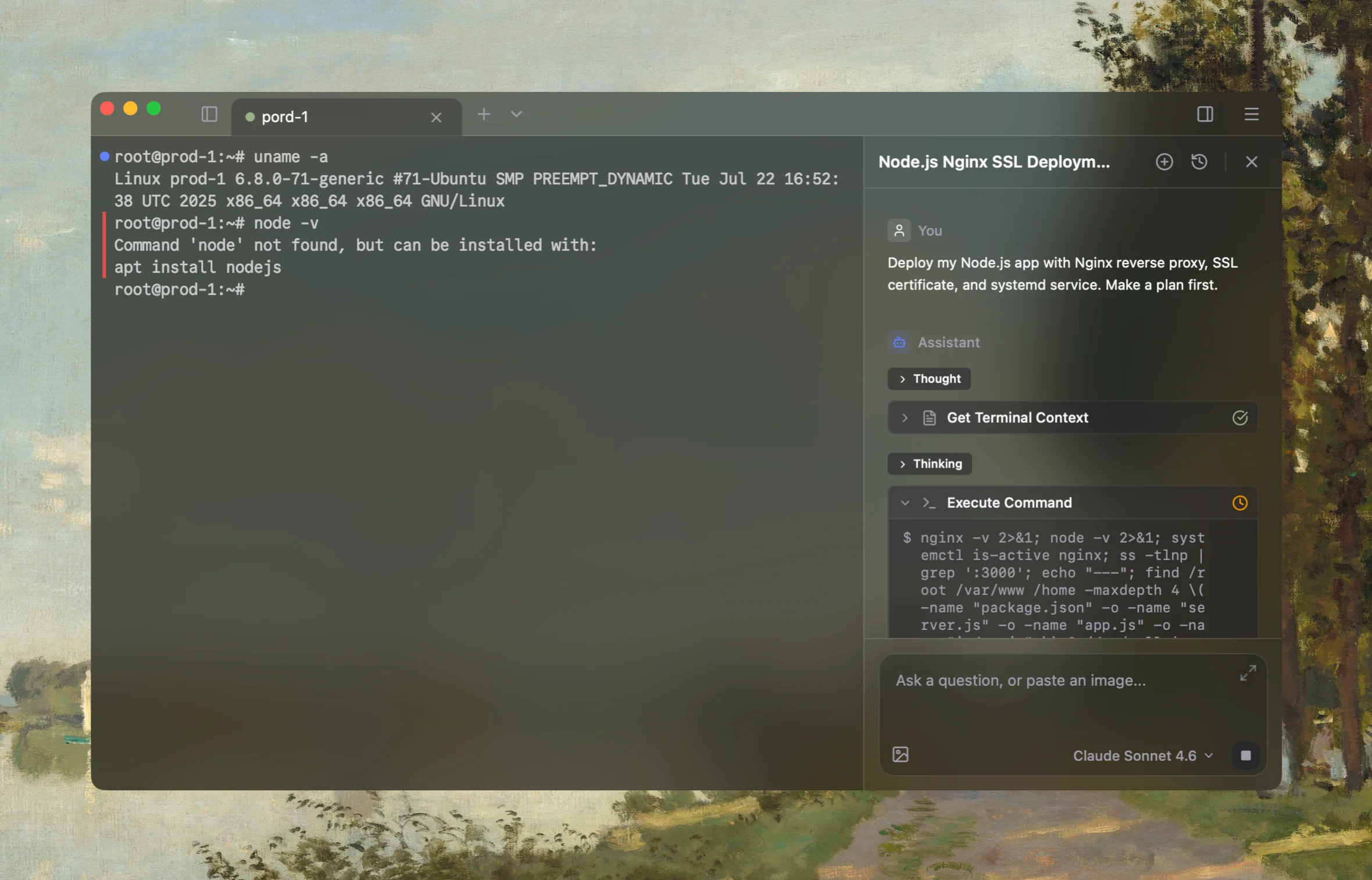
Rumus is an AI-native terminal that can investigate the actual Linux host. Its agent reads relevant files, services, logs, processes, and system state, then proposes a reviewable plan before making changes.
What Rumus can inspect
- Services, processes, sockets, and system resources
- Logs, configuration files, permissions, and ownership
- Read-only evidence before cleanup or restarts
Diagnose the Read-only file system error for /path/that/fails. Identify the exact
mount, source device, filesystem type, and live mount options; inspect kernel logs,
persistent mount configuration, block-device state, and available disk-health data.
Recommend the safest filesystem-specific recovery path. Start read-only and do not
remount, unmount, repair, reboot, or modify data without approval.
Confirm the fix
After the approved recovery, verify mount options and perform a small write test in the intended application directory:
findmnt -T /path/that/fails -o TARGET,SOURCE,FSTYPE,OPTIONS
touch /path/that/fails/.write-test && rm /path/that/fails/.write-test
sudo journalctl -k --since "10 minutes ago"
Confirm there are no fresh filesystem or I/O errors. Then verify the affected service can write its real data and that backups or disk replacement actions are scheduled if hardware health remains uncertain.
Open the server in Rumus and let the AI agent inspect context, propose a plan, and ask before it runs changes.