
How to Fix Cannot Connect to the Docker Daemon
Diagnose Docker daemon connection errors by checking service state, socket paths, permissions, contexts, rootless mode, and remote hosts.
Cannot connect to the Docker daemon means the Docker client could not communicate with the daemon endpoint it selected. The daemon may be stopped, but the same message can also come from a wrong Docker context, an invalid DOCKER_HOST, a missing socket, insufficient permissions, or a failed remote connection.
Read the exact endpoint and error
Start with client-side information:
docker context show
docker context inspect
docker version
The error details matter:
No such file or directoryusually means the expected Unix socket does not exist.Permission deniedmeans the socket exists but the current user cannot open it.Connection refusedmeans an endpoint was reached without a listening daemon.- A timeout often points to a remote context, SSH transport, proxy, or network path.
Check whether environment variables override the active context:
env | grep -E '^DOCKER_(HOST|CONTEXT|TLS|CERT_PATH)'
Do not unset values blindly if automation intentionally targets a remote Docker host.
Check the local daemon
On a systemd-based Linux host:
systemctl status docker --no-pager
sudo journalctl -u docker --since "30 minutes ago"
If the unit failed, inspect the first relevant startup error rather than repeatedly restarting it. Common causes include invalid daemon configuration, storage-driver problems, a full filesystem, missing mounts, and containerd failures.
Also inspect the related runtime:
systemctl status containerd --no-pager
df -h
df -ih
Verify the Docker socket
For the default rootful daemon:
ls -l /var/run/docker.sock
stat /var/run/docker.sock
The socket is normally owned by root and a Docker-related group. Test whether elevated access works:
sudo docker version
If sudo works but the normal command does not, the problem is access rather than daemon availability. Membership in the docker group effectively grants root-level control of the host, so add users only after reviewing that security implication. A new login session is normally required for group changes to take effect.
Avoid using chmod 666 /var/run/docker.sock; it exposes privileged daemon access to every local user.
Check rootless Docker
Rootless Docker uses a per-user service and socket:
systemctl --user status docker
echo "$XDG_RUNTIME_DIR"
ls -l "$XDG_RUNTIME_DIR/docker.sock"
The client may need the rootless context or the correct user socket. Running the rootless daemon as another user, through sudo, or outside its login environment can point the client at the wrong runtime directory.
Inspect contexts and remote connections
List all contexts:
docker context ls
docker context inspect CONTEXT
For an SSH-backed context, verify SSH independently:
ssh -vvv user@host
For a TCP endpoint, confirm the address, TLS configuration, certificates, firewall, and listener. Never expose an unauthenticated Docker TCP socket to an untrusted network; daemon access is equivalent to administrative host access.
Diagnose it with Rumus
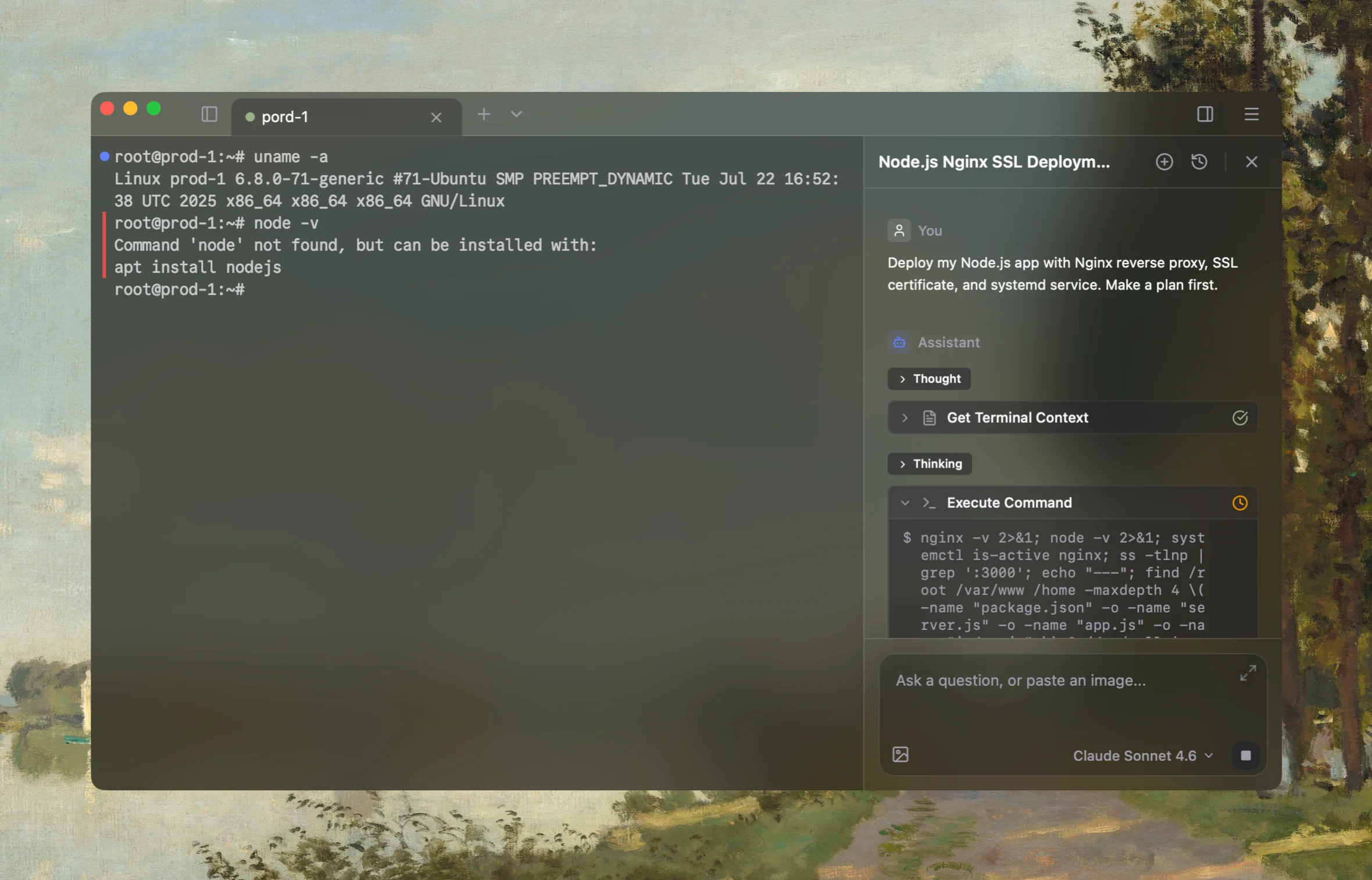
Rumus is an AI-native terminal that can inspect both Docker and its Linux host in one workflow. It connects container state, logs, mounts, networking, and resource limits so you can fix the cause without blindly recreating workloads.
What Rumus can inspect
- Container state, exit codes, logs, and health checks
- Images, mounts, ports, users, and restart policies
- Host resources and Docker daemon context
Diagnose why the Docker client cannot connect to the daemon. Inspect the exact
endpoint and error, active context, DOCKER_* overrides, docker and containerd
service state and logs, socket existence and permissions, rootless user service,
disk capacity, and any SSH or TLS remote transport. Start read-only and do not
restart services, change groups, permissions, contexts, or daemon settings
without approval.
Confirm the fix
Verify both client and server information:
docker version
docker info
docker context show
Confirm the command reaches the intended daemon—not merely a different local or remote context—and that service logs show no recurring storage, configuration, or runtime errors.
Open the server in Rumus and let the AI agent inspect context, propose a plan, and ask before it runs changes.