
How to Fix a Docker Container That Is Unhealthy
Diagnose an unhealthy Docker container by inspecting health-check output, application logs, dependencies, timing, permissions, and resource pressure.
Docker marks a container unhealthy when its configured health check fails repeatedly. The container process may still be running, but the probe cannot confirm that the application is ready. The cause can be a broken probe command, a slow startup, a missing utility, an unavailable dependency, or a real application failure.
Inspect the health-check result
Start with the container state and recent probe history:
docker ps --filter health=unhealthy
docker inspect CONTAINER --format '{{json .State.Health}}'
For readable output with jq installed:
docker inspect CONTAINER --format '{{json .State.Health}}' | jq
Review each entry’s exit code and output. Exit code 0 means healthy; any other value counts as a failure. Empty output can mean the command itself is unavailable or redirects its diagnostics elsewhere.
Find the effective health-check command
Inspect the configuration Docker is actually using:
docker inspect CONTAINER --format '{{json .Config.Healthcheck}}'
docker image inspect IMAGE --format '{{json .Config.Healthcheck}}'
Compose can override an image-level HEALTHCHECK, so compare the running configuration with compose.yaml. Check the command form carefully:
CMDexecutes arguments directly without a shell.CMD-SHELLsupports shell operators and environment expansion.- The probe runs inside the container, not on the Docker host.
A probe that calls curl, wget, or a shell will fail if that binary is not included in the final image.
Run the probe manually
Execute the same command inside the running container and print its exit status:
docker exec CONTAINER sh -c 'HEALTH_CHECK_COMMAND; code=$?; echo "exit=$code"; exit "$code"'
Use the exact configured command in place of HEALTH_CHECK_COMMAND. If the image has no shell, execute the health-check binary and arguments directly with docker exec.
Confirm the probe targets the correct protocol, address, port, and path. Inside a container, localhost refers to that container. It does not refer to another Compose service or the Docker host.
Compare health output with application logs
docker logs CONTAINER --since 15m --timestamps
docker inspect CONTAINER --format 'status={{.State.Status}} restarts={{.RestartCount}} oom={{.State.OOMKilled}} error={{.State.Error}}'
Look for startup migrations, authentication failures, dependency timeouts, bind errors, out-of-memory events, or an application that listens on a different interface or port. A successful process start does not guarantee the service is ready to accept traffic.
Check dependencies from the same network context
List the container’s networks and configuration:
docker inspect CONTAINER --format '{{json .NetworkSettings.Networks}}'
docker inspect CONTAINER --format '{{json .Config.Env}}'
If the readiness endpoint depends on a database, cache, or another service, test that dependency from the application container or an approved diagnostic container on the same Docker network. Avoid printing secrets from environment variables into shared logs.
Review health-check timing
Health checks use four important timing controls:
interval: time between checkstimeout: maximum duration of one checkretries: consecutive failures before the container becomes unhealthystart_period: grace period for application startup
If the application is healthy after a predictable warm-up, set a realistic start_period instead of masking failures with excessive retries. If the probe sometimes exceeds timeout, measure why before simply increasing it.
Diagnose it with Rumus
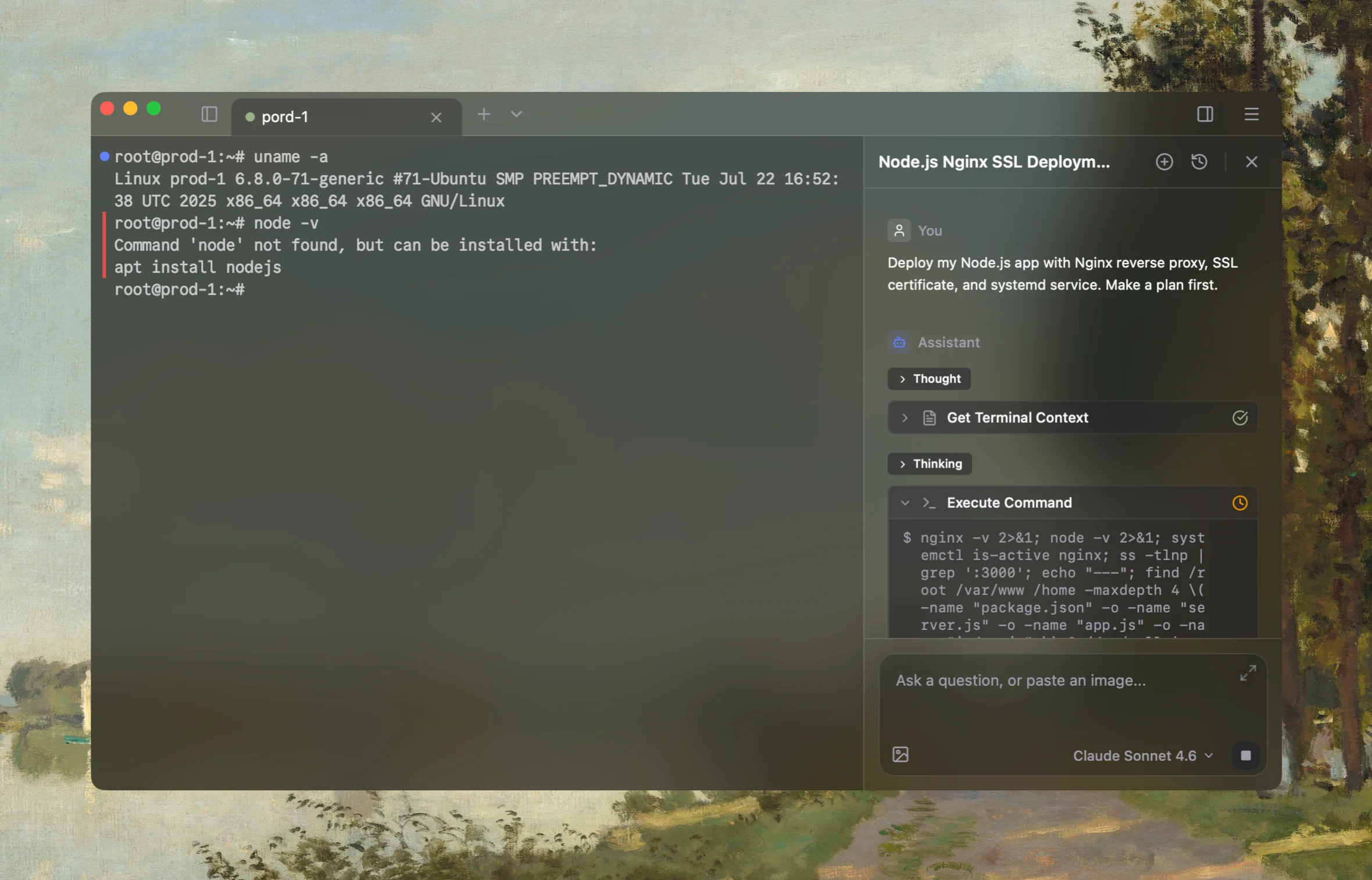
Rumus is an AI-native terminal that can inspect both Docker and its Linux host in one workflow. It connects container state, logs, mounts, networking, and resource limits so you can fix the cause without blindly recreating workloads.
What Rumus can inspect
- Container state, exit codes, logs, and health checks
- Images, mounts, ports, users, and restart policies
- Host resources and Docker daemon context
Diagnose why this Docker container is unhealthy. Inspect its effective health-check
command, recent probe exit codes and output, application logs, restart and OOM state,
listeners, required binaries, dependencies, Docker networks, and health-check timing.
Run the probe manually only if it is safe. Start read-only and do not recreate the
container, change Compose configuration, or restart dependencies without approval.
Confirm the fix
After applying the approved application or health-check change, recreate the container only if the configuration requires it. Then watch its status for longer than the configured start period and retry window:
docker ps --filter name=CONTAINER
docker inspect CONTAINER --format '{{json .State.Health}}' | jq
docker logs CONTAINER --since 10m
Confirm the status becomes healthy, the real application endpoint works from its intended client, and the logs contain no recurring dependency or resource errors.
Open the server in Rumus and let the AI agent inspect context, propose a plan, and ask before it runs changes.