
How to Fix Docker Network Not Found
Diagnose Docker network not found errors by inspecting Compose project names, stale containers, external networks, daemon context, and network state.
Docker reports network not found when a container, Compose project, or command references a network ID or name that is absent from the active daemon. Common causes include a removed Compose network, a stale stopped container, an incorrectly declared external network, a changed project name, or operating against a different Docker context.
Capture the exact reference
docker ps -a --no-trunc
docker network ls --no-trunc
docker context show
Record whether the error names a network ID, a plain name, or a Compose-prefixed name. Confirm that the client is connected to the intended daemon before recreating anything.
Inspect the affected container:
docker inspect CONTAINER --format '{{json .NetworkSettings.Networks}}'
docker inspect CONTAINER --format 'status={{.State.Status}} error={{.State.Error}}'
A stopped container may retain a reference to a network that was deleted later.
Inspect Compose’s effective model
docker compose config
docker compose ls
Compose usually derives network names from its project name. The project name can change with the directory, -p, COMPOSE_PROJECT_NAME, or a top-level name. Starting the same file under a different project name creates or expects different resources.
Use docker compose config --networks where supported to list the resolved network keys, then compare them with docker network ls.
Check external network declarations
An external network must already exist and is not created or removed by Compose:
networks:
  shared:
    external: true
    name: shared-network
Verify the exact resolved name:
docker network inspect shared-network
Do not create an empty replacement with a guessed driver or subnet. The missing network may require specific IPAM, labels, routes, or attachable settings.
Identify stale containers safely
List containers associated with the project and inspect their labels:
docker ps -a --filter label=com.docker.compose.project=PROJECT
docker inspect CONTAINER --format '{{json .Config.Labels}}'
If a container belongs to a managed Compose service, the normal recovery may be to recreate that service after validating the effective configuration. Preserve logs, mounts, environment sources, and state before removing a container.
Avoid using broad commands such as docker system prune for a single missing network error.
Check daemon events and state
docker events --since 30m --filter type=network
docker info
Events can reveal when and by whom a network was removed. Also inspect Docker daemon logs when the network still appears in listings but operations fail:
sudo journalctl -u docker --since "30 minutes ago"
Do not edit Docker’s internal network database under /var/lib/docker. Manual changes can corrupt state beyond the affected network.
Recreate only from known configuration
For a Compose-managed internal network, validate the configuration and use the project’s normal deployment command to recreate missing resources. For an external network, recover it from infrastructure-as-code or its documented parameters.
If containers carry stale network IDs, recreate only the affected containers after confirming persistent data lives in volumes or external storage.
Diagnose it with Rumus
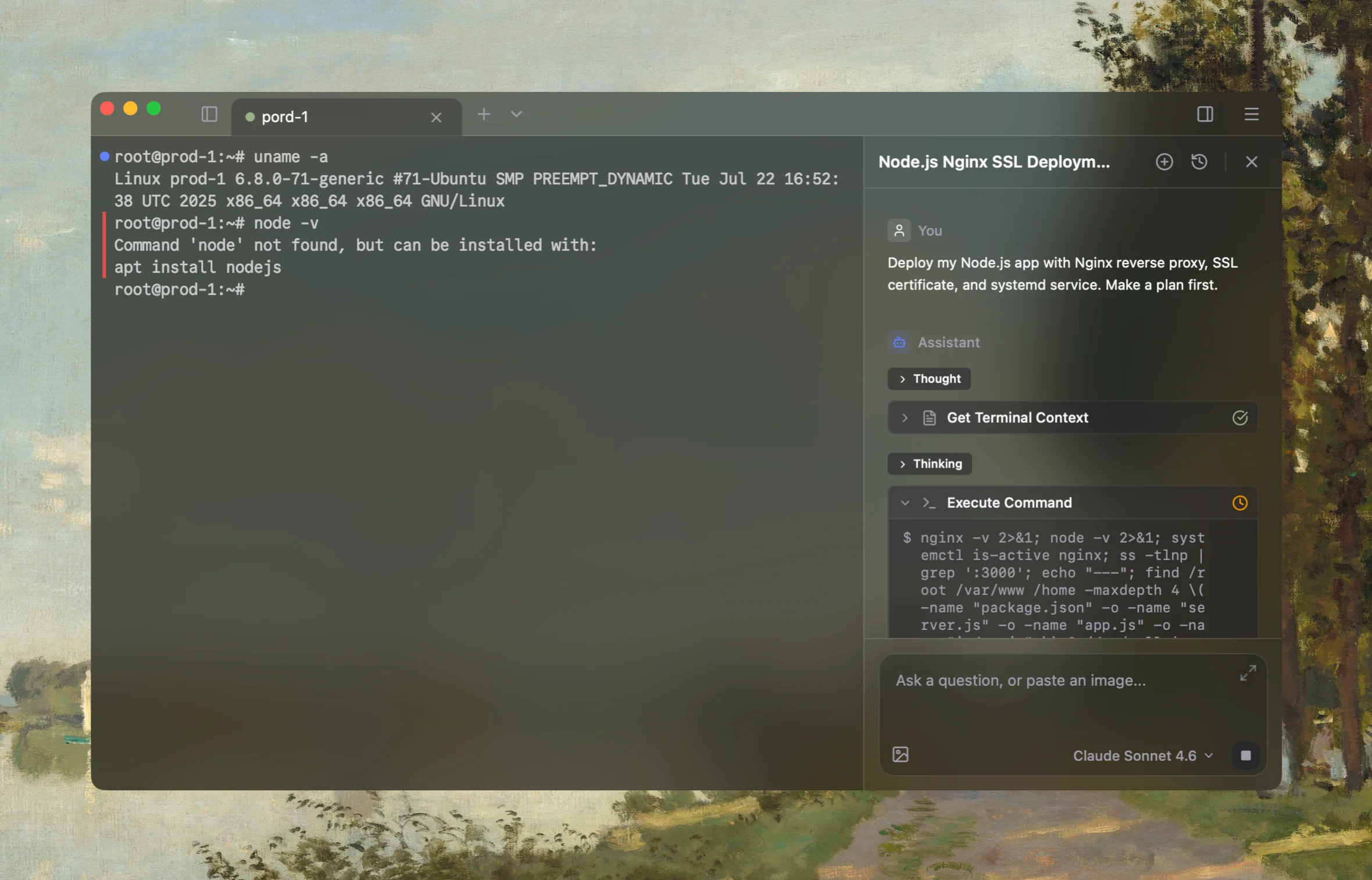
Rumus is an AI-native terminal that can inspect both Docker and its Linux host in one workflow. It connects container state, logs, mounts, networking, and resource limits so you can fix the cause without blindly recreating workloads.
What Rumus can inspect
- Container state, exit codes, logs, and health checks
- Images, mounts, ports, users, and restart policies
- Host resources and Docker daemon context
Diagnose this Docker network not found error. Confirm the active Docker context
and daemon; capture the missing name or ID; inspect network listings, affected
container references and labels, Compose project name and rendered networks,
external-network declarations, recent network events, and daemon logs. Start
read-only and do not prune, remove or recreate containers or networks, restart
Docker, or edit internal state without approval.
Confirm the fix
docker network inspect NETWORK
docker compose ps
docker inspect CONTAINER --format '{{json .NetworkSettings.Networks}}'
Confirm containers attach to the intended network, service-name DNS resolves between them, published ports work as expected, and a subsequent Compose deployment preserves the same network identity.
Open the server in Rumus and let the AI agent inspect context, propose a plan, and ask before it runs changes.