
How to Fix SSH Permission Denied (publickey)
Diagnose SSH public key authentication failures by checking the offered key, file permissions, server configuration, and authentication logs.
The Permission denied (publickey) message means the SSH server did not accept any key offered by your client. The fastest way to find the cause is to run SSH in verbose mode, confirm which key is being offered, and then check permissions and server logs.
Avoid replacing permissions or SSH configuration blindly. First identify whether the failure is on the client, the account, or the server.
Inspect which key SSH offers
Run the connection with verbose logging:
ssh -vvv user@example.com
Look for Offering public key followed by either Server accepts key or another rejection. If the expected key is missing, specify it explicitly:
ssh -i ~/.ssh/id_ed25519 user@example.com
Check local key permissions
OpenSSH rejects private keys that other users can read. Set restrictive permissions:
chmod 700 ~/.ssh
chmod 600 ~/.ssh/id_ed25519
chmod 644 ~/.ssh/id_ed25519.pub
Then try the verbose connection again.
Verify the server account and authorized key
Confirm that you are connecting as the correct remote user. On the server, the matching public key must be one complete line in ~/.ssh/authorized_keys for that user.
chmod 700 ~/.ssh
chmod 600 ~/.ssh/authorized_keys
The home directory and .ssh directory must also be owned by the remote account. Do not run a recursive chmod over the entire home directory.
Read the authentication logs
On Ubuntu or Debian:
sudo tail -n 100 /var/log/auth.log
On Fedora, RHEL, or another systemd-based distribution:
sudo journalctl -u sshd -n 100 --no-pager
The server log usually reveals an ownership problem, an unsupported key algorithm, or a disabled authentication method.
Diagnose it with Rumus
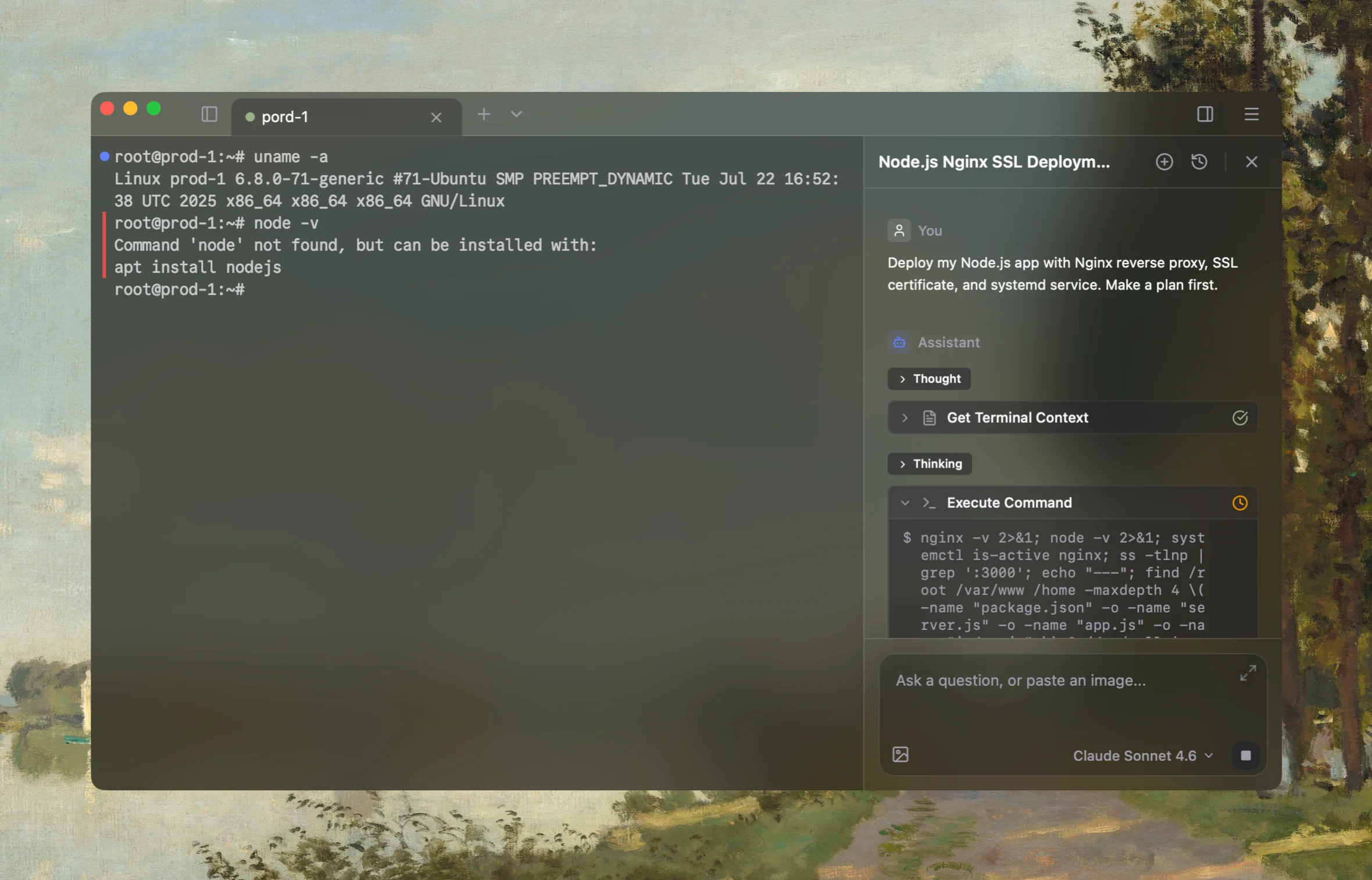
Rumus is an AI-native terminal that connects to your real SSH hosts and understands the active connection context. It can inspect SSH configuration, identities, network paths, and server logs instead of guessing from an isolated chat.
What Rumus can inspect
- SSH config, keys, and effective connection settings
- Jump hosts, proxies, ports, and network reachability
- Server authentication logs and file permissions
Connect to the host or open the relevant local workspace in Rumus and ask:
Diagnose why this SSH connection returns Permission denied (publickey).
Check the offered identities, SSH config, key permissions, target account,
and available server authentication logs. Explain every proposed change
before running it.
Rumus can inspect the actual environment, propose a step-by-step plan, and ask for approval before executing changes. This is especially useful when several SSH config entries, jump hosts, or keys may affect the connection.
Confirm the fix
Reconnect with ssh -vvv. A successful authentication includes a message similar to Authenticated to example.com using publickey, followed by a shell session.
If the server still rejects the key, compare its fingerprint on both sides:
ssh-keygen -lf ~/.ssh/id_ed25519.pub
Do not copy a private key to the remote server. Only the .pub key belongs in authorized_keys.
Open the server in Rumus and let the AI agent inspect context, propose a plan, and ask before it runs changes.