
How to Fix SSH Connection Refused
Find out why an SSH server refuses connections by checking the port, service status, firewall rules, bind address, and network path.
Connection refused means your computer reached the target host, but nothing accepted the TCP connection on the requested port. This normally points to a stopped SSH service, the wrong port, an incorrect bind address, or a firewall actively rejecting traffic.
Confirm the host and port
First verify the destination without changing the server:
ssh -vvv user@example.com
nc -vz example.com 22
If SSH uses a custom port, specify it explicitly:
ssh -p 2222 user@example.com
Check ~/.ssh/config for a Port, HostName, proxy, or jump-host rule that changes the effective destination.
Check whether SSH is running
Use console access or another management path to inspect the server:
sudo systemctl status ssh
sudo systemctl status sshd
The unit is commonly named ssh on Debian and Ubuntu, and sshd on Fedora and RHEL. Start the correct service only after checking its logs:
sudo journalctl -u sshd -n 100 --no-pager
sudo sshd -t
sshd -t validates the configuration without restarting the service.
Verify the listening address
Check which process owns the SSH port:
sudo ss -ltnp | grep -E ':22\s'
A listener on 127.0.0.1:22 accepts only local connections. A normal public listener usually appears on 0.0.0.0:22, [::]:22, or a specific server interface.
Inspect firewall and cloud rules
Depending on the server, inspect one of these firewalls:
sudo ufw status verbose
sudo firewall-cmd --list-all
sudo nft list ruleset
Also check the cloud security group or network ACL. Do not expose port 22 to the entire internet when access can be restricted to trusted source addresses or a bastion host.
Diagnose it with Rumus
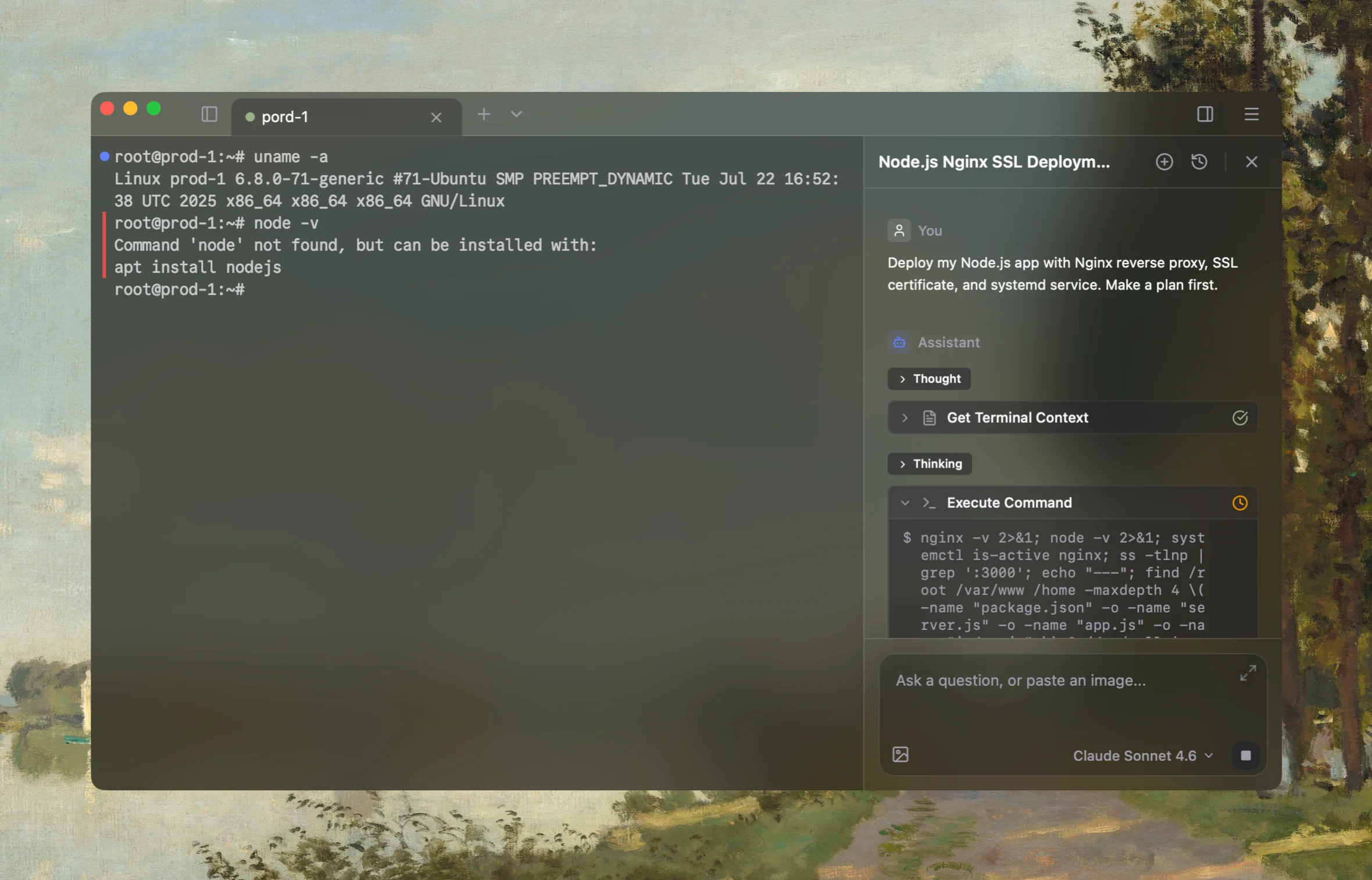
Rumus is an AI-native terminal that connects to your real SSH hosts and understands the active connection context. It can inspect SSH configuration, identities, network paths, and server logs instead of guessing from an isolated chat.
What Rumus can inspect
- SSH config, keys, and effective connection settings
- Jump hosts, proxies, ports, and network reachability
- Server authentication logs and file permissions
In Rumus, open the affected host or a reachable machine on the same network and ask:
Diagnose why SSH to example.com is being refused. Verify the resolved address,
effective SSH config, target port, network reachability, sshd service status,
listening sockets, and firewall rules. Do not restart sshd or change firewall
rules without showing the evidence and asking for approval.
This keeps the investigation read-only until the cause is clear.
Confirm the fix
Repeat both checks:
nc -vz example.com 22
ssh -vvv user@example.com
A successful TCP test followed by an SSH banner confirms that the service is reachable. Authentication errors after that are a separate key or account problem.
Open the server in Rumus and let the AI agent inspect context, propose a plan, and ask before it runs changes.