
How to Debug a Failed systemd Service
Use systemctl, journalctl, unit validation, and dependency checks to find why a Linux systemd service failed to start.
A failed systemd unit is a symptom, not a diagnosis. Read its status, recent journal, effective unit definition, and dependencies before repeatedly restarting it.
Read the current status
sudo systemctl status my-service --no-pager -l
sudo systemctl show my-service -p Result -p ExecMainStatus -p ExecMainCode
The exit status and final log lines often identify a missing configuration file, permission error, invalid argument, or unavailable dependency.
Inspect the complete journal
sudo journalctl -u my-service -b --no-pager
sudo journalctl -u my-service --since '30 minutes ago' --no-pager
Use -b to limit results to the current boot. Look above the final failure for the first relevant error.
Review the effective unit
sudo systemctl cat my-service
sudo systemctl show my-service -p FragmentPath -p DropInPaths
Drop-in files can override the vendor unit. If you edited a unit, validate and reload it:
sudo systemd-analyze verify /etc/systemd/system/my-service.service
sudo systemctl daemon-reload
Test the configured command
Read User, WorkingDirectory, EnvironmentFile, and ExecStart. Test with the same user and environment where possible. Do not run an untrusted service command as root merely to see whether it works.
Diagnose it with Rumus
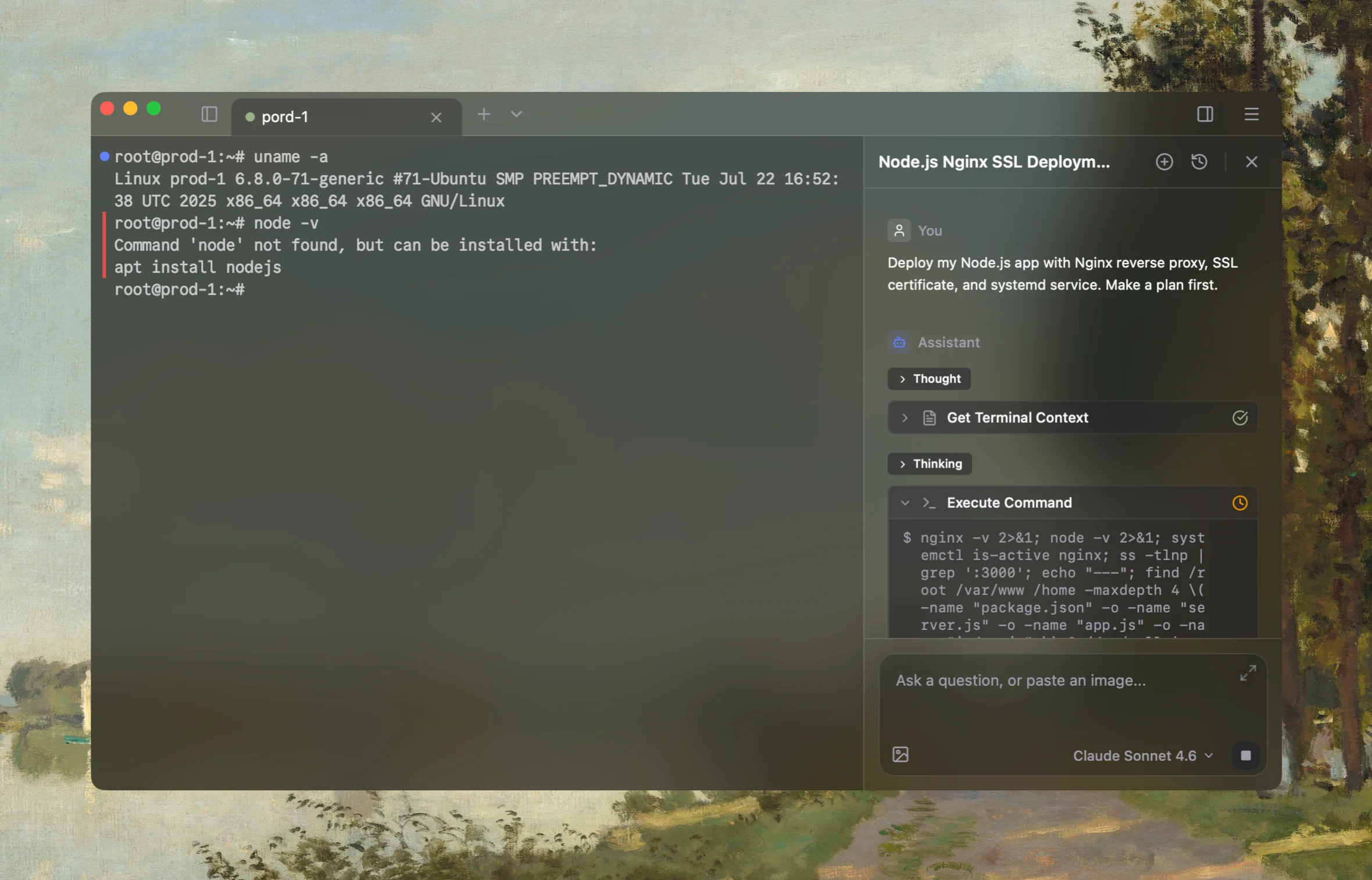
Rumus is an AI-native terminal that can investigate the actual Linux host. Its agent reads relevant files, services, logs, processes, and system state, then proposes a reviewable plan before making changes.
What Rumus can inspect
- Services, processes, sockets, and system resources
- Logs, configuration files, permissions, and ownership
- Read-only evidence before cleanup or restarts
Diagnose why my-service failed under systemd. Inspect its status, current-boot
journal, effective unit and drop-ins, configured user, paths, dependencies, and
exit code. Start read-only and ask before editing files or restarting the unit.
Confirm the fix
After correcting the underlying issue:
sudo systemctl restart my-service
sudo systemctl is-active my-service
sudo journalctl -u my-service -n 50 --no-pager
Also test the service’s real health endpoint or workload; an active unit does not guarantee that the application is healthy.
Open the server in Rumus and let the AI agent inspect context, propose a plan, and ask before it runs changes.