
How to Fix No Space Left on Device in Linux
Determine whether a Linux server ran out of disk blocks or inodes, find the real space consumers, and recover capacity safely.
Linux reports No space left on device when a filesystem has exhausted data blocks or inodes. It can also happen when deleted files remain open by a running process. Identify which case applies before deleting anything.
Check blocks and inodes
df -h
df -i
Use% near 100% in df -h means the filesystem is out of storage blocks. A full IUse% in df -i means it contains too many files, often millions of small cache or session files.
Locate large directories
Stay on the affected filesystem with -x:
sudo du -xhd1 / | sort -h
sudo du -xhd1 /var | sort -h
Continue into the largest directory. Avoid broad deletion commands until you understand what owns the files and their retention requirements.
Find unusually large individual files:
sudo find /var -xdev -type f -size +1G -printf '%s %p\n' | sort -n
Find deleted files that remain open
A process can keep disk space allocated after its file is deleted:
sudo lsof +L1
Restart or reload only the owning service after checking its operational impact. Do not kill production processes solely to recover space without a rollback plan.
Inspect logs and package caches
sudo journalctl --disk-usage
sudo du -sh /var/log/* 2>/dev/null
For systemd journals, apply an intentional retention limit:
sudo journalctl --vacuum-time=14d
Use the package manager’s supported cache cleanup rather than deleting its database manually.
Diagnose it with Rumus
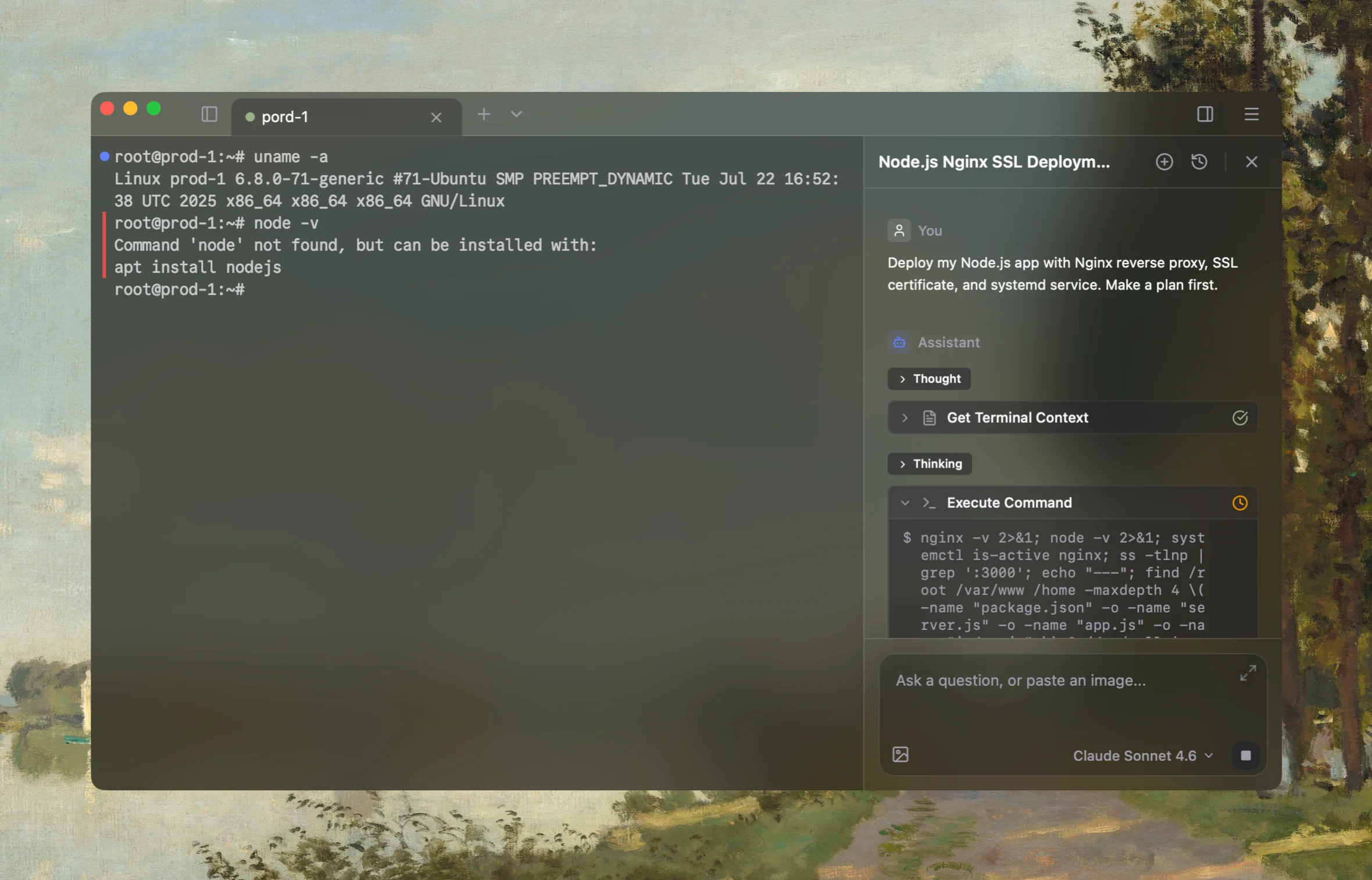
Rumus is an AI-native terminal that can investigate the actual Linux host. Its agent reads relevant files, services, logs, processes, and system state, then proposes a reviewable plan before making changes.
What Rumus can inspect
- Services, processes, sockets, and system resources
- Logs, configuration files, permissions, and ownership
- Read-only evidence before cleanup or restarts
Open the server in Rumus and ask:
Diagnose this No space left on device error. Check filesystem blocks, inodes,
mount points, largest directories, open deleted files, logs, container storage,
and package caches. Start read-only and rank cleanup options by risk and impact.
Ask before deleting files or restarting services.
Confirm the recovery
Run df -h and df -i again, then retry the failed operation. Add monitoring and retention limits so the filesystem does not silently return to 100% usage.
Open the server in Rumus and let the AI agent inspect context, propose a plan, and ask before it runs changes.