
How to Fix Docker Permission Denied Errors
Resolve Docker socket, bind-mount, and container filesystem permission errors without weakening host security.
Docker permission errors usually occur at one of three boundaries: access to the Docker daemon socket, access to a host bind mount, or access inside the container filesystem. Identify the boundary before changing permissions.
Docker socket permission denied
Check the socket and your groups:
ls -l /var/run/docker.sock
id
docker info
On a conventional Linux installation, membership in the docker group grants daemon access:
sudo usermod -aG docker "$USER"
Sign out and back in before testing. Treat Docker group membership as root-equivalent access; do not grant it casually on shared servers.
Bind-mount permission denied
Compare the numeric identities on the host and in the container:
stat -c '%u:%g %a %n' /host/path
docker exec my-container id
docker inspect my-container --format '{{json .Mounts}}'
Prefer aligning the application’s UID/GID or assigning ownership to the intended service identity. Avoid chmod -R 777, which hides the ownership problem and exposes files to every local user.
Check SELinux labeling
On SELinux systems, normal Unix permissions may look correct while access is denied:
getenforce
ls -Zd /host/path
Docker bind mounts may require the documented :z or :Z option. Understand whether content is shared before relabeling it.
Diagnose it with Rumus
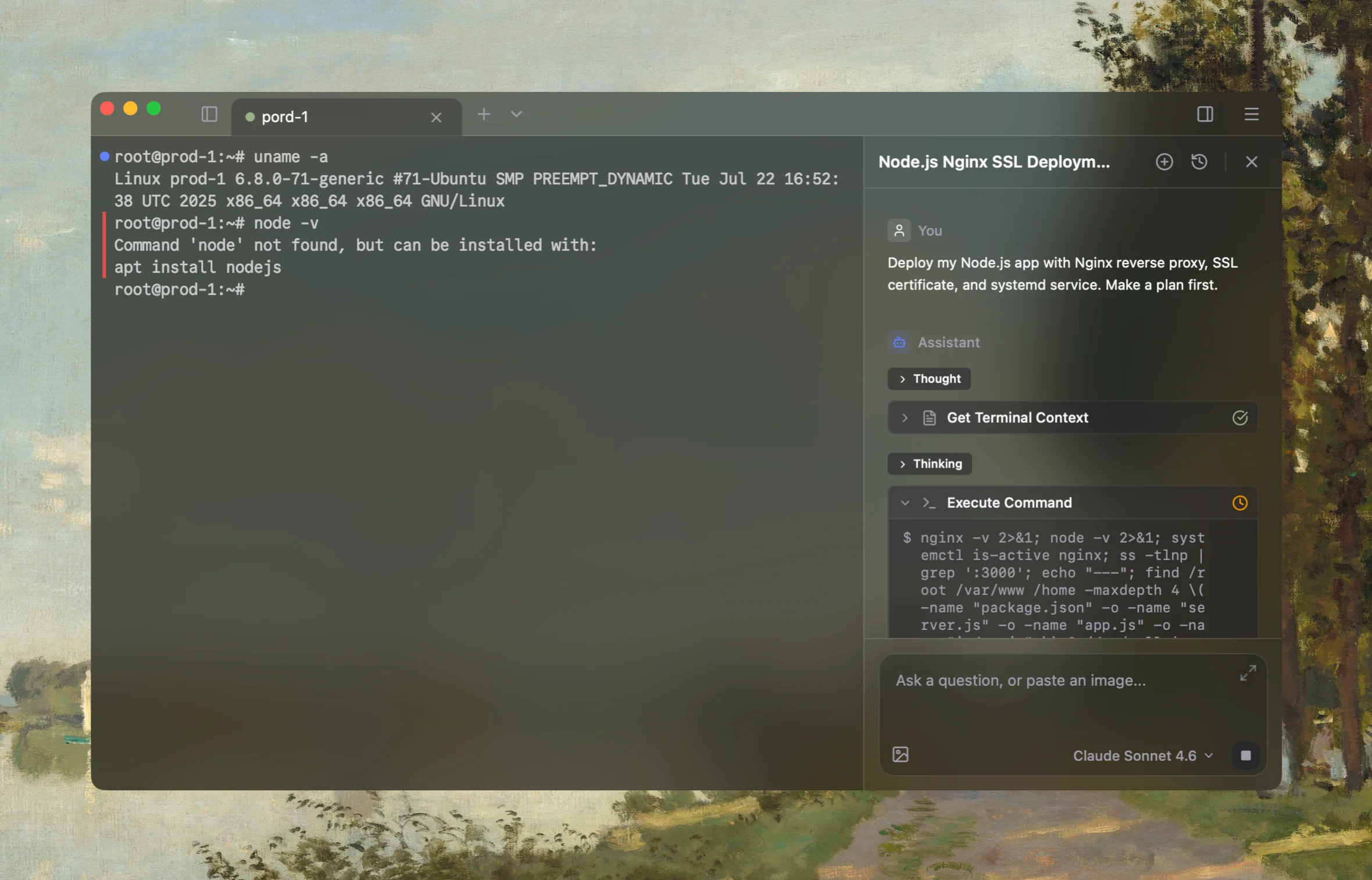
Rumus is an AI-native terminal that can inspect both Docker and its Linux host in one workflow. It connects container state, logs, mounts, networking, and resource limits so you can fix the cause without blindly recreating workloads.
What Rumus can inspect
- Container state, exit codes, logs, and health checks
- Images, mounts, ports, users, and restart policies
- Host resources and Docker daemon context
Diagnose this Docker permission denied error. Determine whether it comes from the
daemon socket, a bind mount, the container filesystem, user namespaces, or SELinux.
Compare numeric UID/GID and effective permissions. Do not use chmod 777 or change
ownership recursively without explaining the scope and asking for approval.
Confirm the fix
Repeat the original Docker command or application operation as the intended user. Confirm that access succeeds without broadening unrelated permissions.
Open the server in Rumus and let the AI agent inspect context, propose a plan, and ask before it runs changes.