
How to Fix DNS Not Working in Docker Containers
Diagnose Docker container DNS failures by separating name resolution from network connectivity and checking resolv.conf, networks, proxies, and the daemon.
A container DNS error can come from Docker’s embedded DNS, the host resolver, an unreachable upstream server, a VPN or firewall, an incorrect network attachment, or an application proxy configuration. First determine whether only name resolution fails or the container has no outbound connectivity at all.
Separate DNS from network connectivity
Enter the affected container using a shell that already exists in the image:
docker exec -it CONTAINER sh
Inspect its resolver configuration:
cat /etc/resolv.conf
Then test both an IP address and a hostname using tools available in the image:
getent hosts example.com
nslookup example.com
Minimal images may not include ping, curl, getent, or nslookup. Do not modify a production container just to add troubleshooting tools. Use a temporary diagnostic container on the same network instead.
Run a temporary network diagnostic container
Find the affected container’s networks:
docker inspect CONTAINER --format '{{json .NetworkSettings.Networks}}'
Start an approved diagnostic image on the same network:
docker run --rm --network NETWORK busybox nslookup example.com
Only pull diagnostic images from a trusted registry. If the network cannot reach the registry, use an image already present on the host.
Understand Docker’s resolver address
Containers on user-defined networks commonly use Docker’s embedded DNS at 127.0.0.11. It resolves container and service names, then forwards other queries to upstream resolvers selected by the daemon.
The default bridge can behave differently from a user-defined network. Compare the network driver and attachments:
docker network inspect NETWORK
In Docker Compose, services discover one another by service name when they share a Compose network. localhost inside a container refers to that same container, not another service or the Docker host.
Compare the host resolver
On the Docker host:
cat /etc/resolv.conf
getent hosts example.com
docker info
If the host also cannot resolve the name, fix the host, VPN, or upstream DNS path first. If only containers fail, inspect Docker daemon configuration and logs:
sudo journalctl -u docker --since '30 minutes ago' --no-pager
Do not restart Docker casually on a production host: depending on configuration, it may interrupt many running containers.
Check firewalls, VPNs, and proxies
DNS commonly uses UDP port 53 and may fall back to TCP. Host firewall or VPN rules can allow normal web traffic while dropping DNS forwarding from Docker bridges.
HTTP proxy variables do not fix DNS used by every application. Inspect the container’s proxy environment without printing credential-bearing proxy URLs into shared logs:
docker inspect CONTAINER --format '{{json .Config.Env}}'
Redact values before sharing the output.
Configure DNS only when necessary
Docker supports daemon-wide DNS configuration and per-container or Compose DNS settings. Prefer correcting the real upstream resolver or VPN integration. Hard-coding a public resolver may bypass internal zones, split DNS, compliance controls, or private service discovery.
After changing daemon configuration, validate its JSON before restarting Docker. Plan for the effect on every container using that daemon.
Diagnose it with Rumus
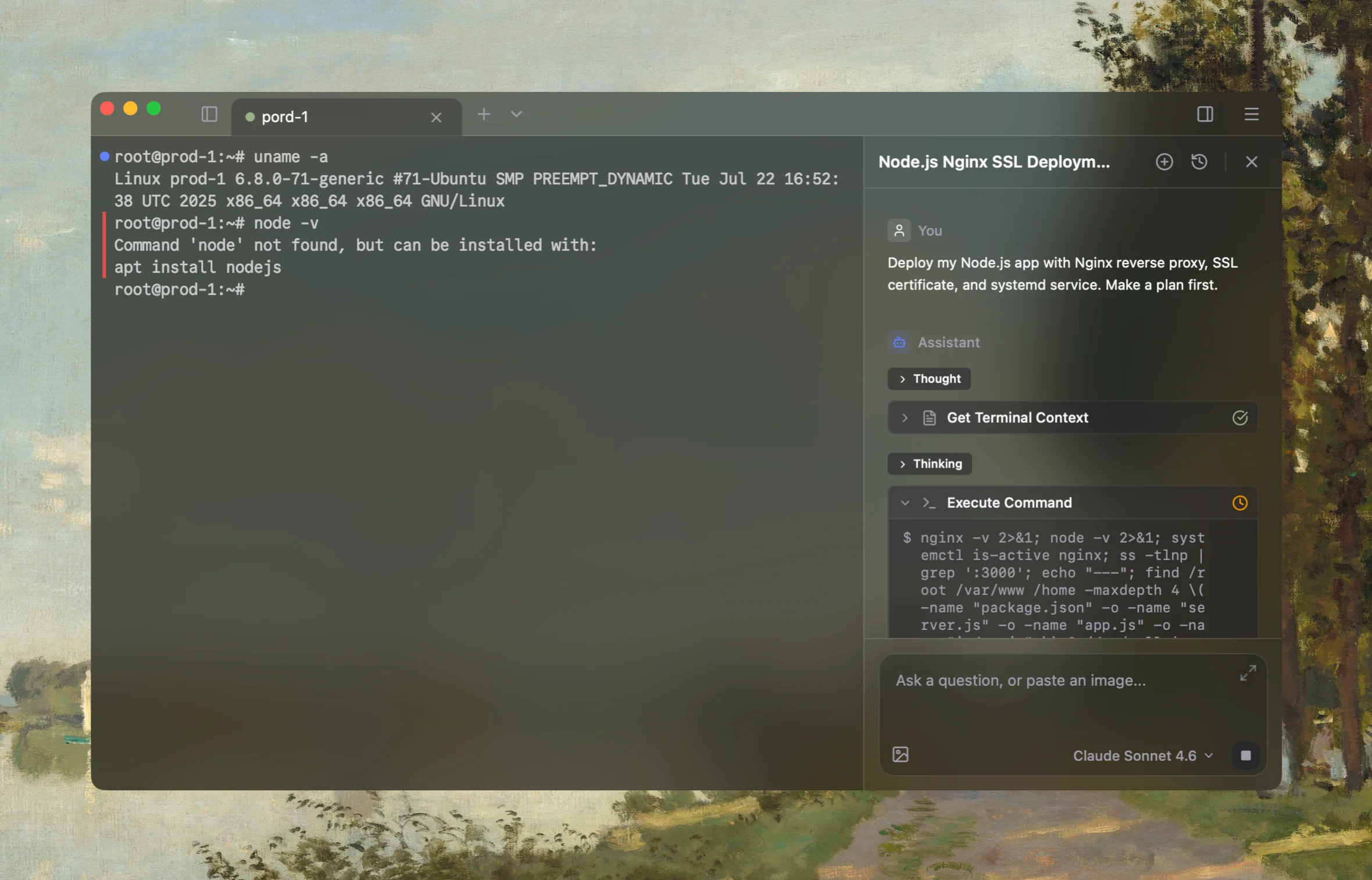
Rumus is an AI-native terminal that can inspect both Docker and its Linux host in one workflow. It connects container state, logs, mounts, networking, and resource limits so you can fix the cause without blindly recreating workloads.
What Rumus can inspect
- Container state, exit codes, logs, and health checks
- Images, mounts, ports, users, and restart policies
- Host resources and Docker daemon context
Diagnose why this Docker container cannot resolve names. Compare IP connectivity
with DNS, inspect its resolv.conf and network attachments, test from an approved
temporary container on the same network, compare the host resolver, and inspect
Docker daemon logs plus firewall, VPN, and proxy context. Redact credentials.
Do not pull images, edit daemon settings, or restart Docker without approval.
Confirm the fix
Test both external and Docker-internal names from the affected network:
docker run --rm --network NETWORK busybox nslookup example.com
docker run --rm --network NETWORK busybox nslookup SERVICE_NAME
Finally, retry the real application operation. Successful nslookup is not sufficient if the application uses a different resolver library, proxy, search domain, or network path.
Open the server in Rumus and let the AI agent inspect context, propose a plan, and ask before it runs changes.