
How to Fix Docker Disk Space Full
Find which Docker images, containers, volumes, logs, or build cache consume disk space and reclaim capacity without deleting needed data.
Docker can fill a filesystem with image layers, stopped containers, writable container layers, volumes, build cache, or unbounded container logs. Do not begin with docker system prune -a --volumes: first identify which category owns the space and whether it contains recoverable or persistent data.
Confirm the affected filesystem
df -h
df -i
docker info --format '{{.DockerRootDir}}'
Check both blocks and inodes. Millions of small files can exhaust inodes even when df -h shows free capacity. Docker’s root directory is commonly /var/lib/docker, but it may be configured elsewhere.
Summarize Docker usage
docker system df
docker system df -v
This separates images, containers, local volumes, and build cache. The RECLAIMABLE value is an estimate, not permission to delete everything in that category.
Find large containers and logs
Inspect writable container-layer sizes:
docker ps -a --size \
  --format 'table {{.ID}}\t{{.Names}}\t{{.Status}}\t{{.Size}}'
Find each container’s configured log path and driver:
docker inspect CONTAINER \
  --format 'driver={{.HostConfig.LogConfig.Type}} path={{.LogPath}}'
For the json-file driver, missing rotation limits can create very large files. Do not truncate active logs before preserving evidence needed for an incident, and do not assume every log driver stores data locally.
Review unused images and build cache
docker image ls --digests
docker builder du
docker buildx du
Multiple tags can reference the same underlying layers, so adding displayed image sizes does not accurately measure unique disk use. Confirm which images active and rollback deployments require before pruning.
Inspect volumes carefully
docker volume ls
docker ps -a --format '{{.Names}} {{.Mounts}}'
An unattached volume may still hold a database, upload directory, or intentionally retained backup. Inspect its labels, Compose project, creation time, and operational owner before removal.
Do not manually delete files inside Docker’s internal storage directories. That can corrupt layer or volume metadata and leave the daemon in an inconsistent state.
Choose the narrowest cleanup
Examples of scoped cleanup include:
docker container prune
docker image prune
docker builder prune
Each command shows what it intends to remove and asks for confirmation. Understand its scope before approving it. Avoid -a, --volumes, and automated confirmation until you have reviewed the candidate objects and rollback requirements.
For a long-term fix, configure application log retention, Docker log rotation, build-cache policy, image lifecycle rules, disk monitoring, and sufficient storage capacity.
Diagnose it with Rumus
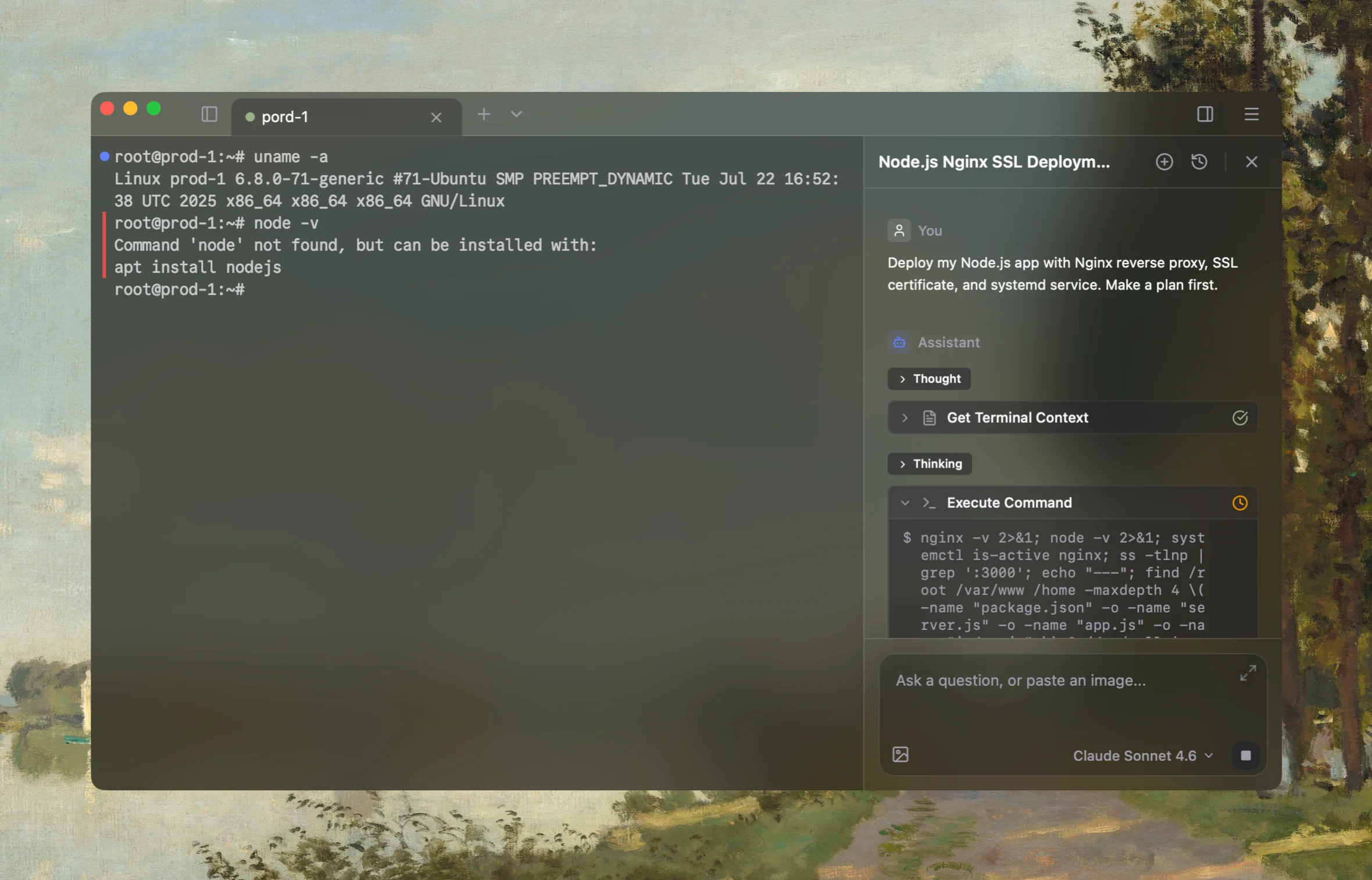
Rumus is an AI-native terminal that can inspect both Docker and its Linux host in one workflow. It connects container state, logs, mounts, networking, and resource limits so you can fix the cause without blindly recreating workloads.
What Rumus can inspect
- Container state, exit codes, logs, and health checks
- Images, mounts, ports, users, and restart policies
- Host resources and Docker daemon context
Diagnose why Docker storage is full. Check filesystem blocks and inodes, Docker
root, system df details, container writable layers and log paths, unused images,
build cache, and volume ownership. Rank cleanup candidates by bytes, risk, and
rollback value. Do not prune, truncate logs, remove volumes, or restart Docker
without showing the exact affected objects and asking for approval.
Confirm the fix
After approved cleanup or retention changes:
df -h
df -i
docker system df
docker ps
Verify running applications and persistent data, then confirm that monitoring and rotation prevent the filesystem from returning to full capacity.
Open the server in Rumus and let the AI agent inspect context, propose a plan, and ask before it runs changes.