
How to Debug a Failed Docker Build
Troubleshoot Docker build failures by isolating the failing stage, checking build context, cache, network access, architecture, and secret handling.
A Docker build can fail because of an invalid Dockerfile instruction, missing build-context files, dependency or network errors, architecture differences, exhausted disk space, or a command that only works in an interactive development shell. Preserve the full failing output before changing the image.
Show complete build output
Use plain progress output so the failing command is not collapsed:
docker build --progress=plain -t my-image:debug .
Record the exact stage and instruction. The final error may be a wrapper around a more useful message several lines earlier.
Verify the build context
COPY and ADD can only access files inside the selected build context. Inspect .dockerignore and confirm the build command runs from the intended directory:
pwd
find . -maxdepth 2 -type f | sort
cat .dockerignore
Do not send unnecessary secrets, credentials, dependency caches, or Git history in the build context.
Rebuild the failing stage
For a multi-stage Dockerfile:
docker build --progress=plain --target builder -t my-image:builder .
Temporarily split long RUN instructions only when it helps isolate the failure. Keep the final image changes intentional rather than leaving debugging commands behind.
Test cache and platform assumptions
To determine whether stale cache is involved:
docker build --no-cache --progress=plain -t my-image:debug .
This is diagnostic and may be slower or put more load on package registries. On mixed architectures, confirm the requested platform and base-image support:
docker buildx imagetools inspect BASE_IMAGE
docker buildx build --platform linux/amd64 --progress=plain .
Handle credentials safely
Do not pass persistent credentials through ARG or copy them into an image layer. Use BuildKit secret mounts for package registries and private dependencies, and avoid printing secret values in build logs.
Diagnose it with Rumus
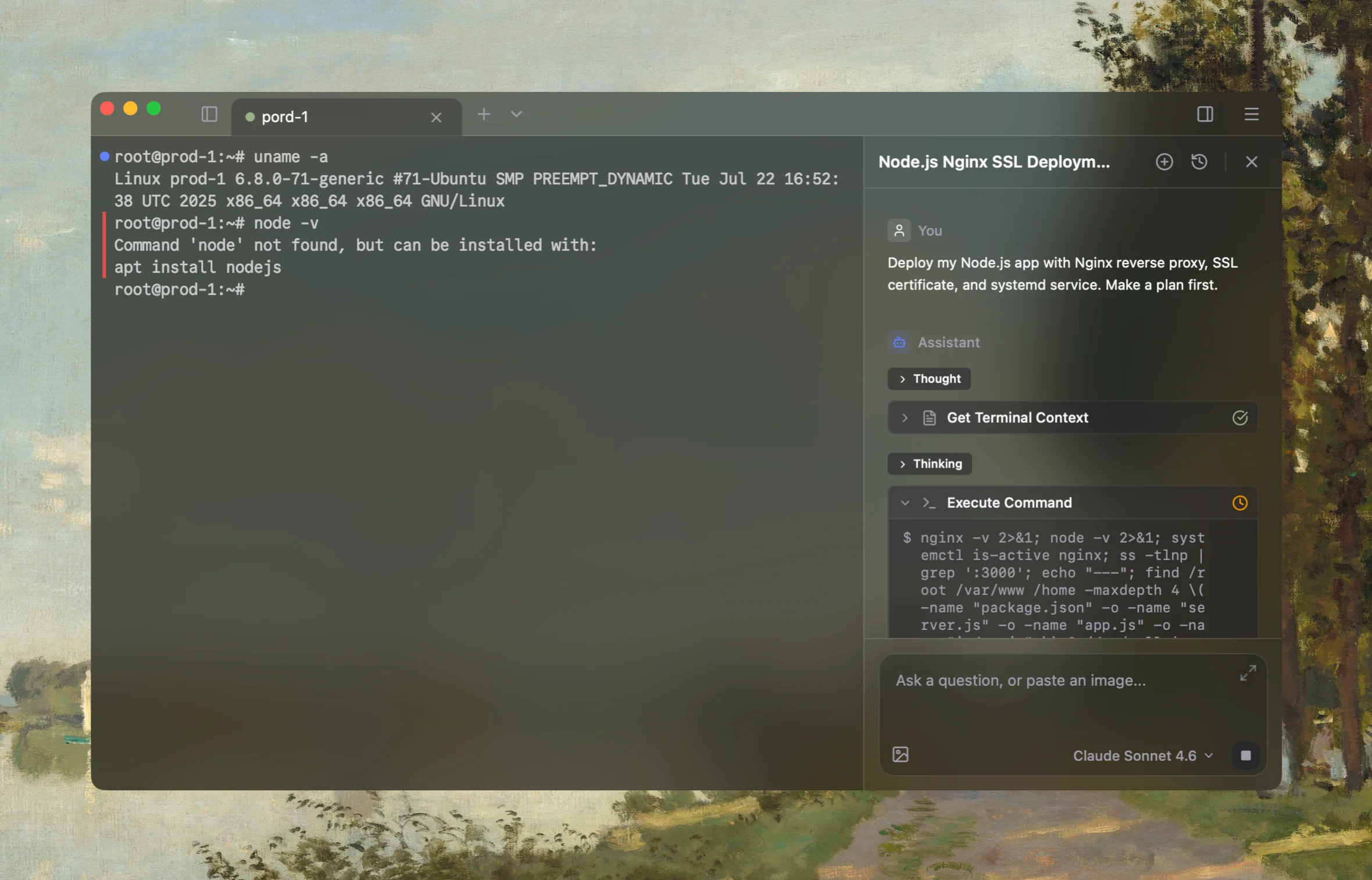
Rumus is an AI-native terminal that can inspect both Docker and its Linux host in one workflow. It connects container state, logs, mounts, networking, and resource limits so you can fix the cause without blindly recreating workloads.
What Rumus can inspect
- Container state, exit codes, logs, and health checks
- Images, mounts, ports, users, and restart policies
- Host resources and Docker daemon context
Diagnose this failed Docker build. Identify the first failing stage and command,
inspect the Dockerfile, .dockerignore, build context, disk space, cache behavior,
network dependencies, and target architecture. Redact credentials and do not
prune caches or modify the Dockerfile until you show the evidence and ask.
Confirm the fix
Build from a clean checkout or CI-equivalent environment, then inspect and start the resulting image:
docker build --progress=plain -t my-image:test .
docker image inspect my-image:test
docker run --rm my-image:test
Passing a cached local build is not enough if CI uses a different context, platform, or network policy.
Open the server in Rumus and let the AI agent inspect context, propose a plan, and ask before it runs changes.